The interview
The PRD Assistant asks one question per reply until your requirements are covered. You answer in your own words, or pick from the options it offers.
The assistant keeps asking questions until it’s confident it has captured all of your requirements. You can always end the conversation earlier and download a PRD of the current state. It’s up to you to decide how long you want to keep the conversation going.
To start from a document you already have, see Attach a document.
Replies
The assistant asks one question per reply, so you can answer each point fully before moving on.
Quick replies
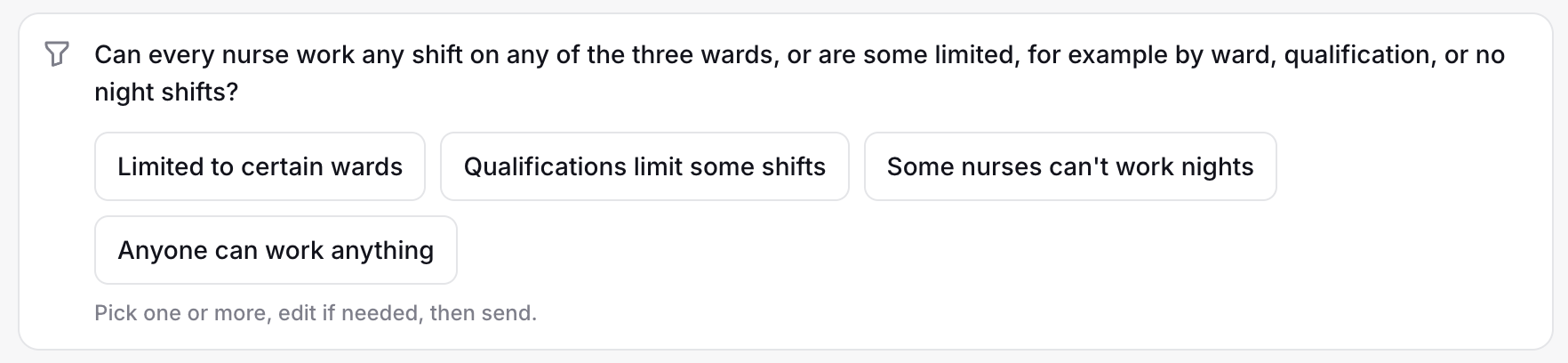
Many questions come with quick replies.
-
Select a quick reply to send it right away.
-
To edit a quick reply before you send it, point to it and select the pencil button (Edit before sending). The quick reply then moves to the message field, where you can change it.

For questions that accept more than one answer, the assistant shows "Pick one or more, edit if needed, then send." Select the replies that apply, edit the text if needed, and send.

Use cases
Timefold has researched common planning use cases. The known use cases are listed on https://timefold.ai/use-cases. A use case gives the interview a head start with the rules that usually apply to that kind of plan.
If you start the PRD Assistant from one of those use case pages, the assistant already knows the common challenges and requirements for that use case.
Use-case recognition
When you start without a use case, the assistant proposes the closest researched use case once it understands your problem. You confirm or reject it. The PRD then labels each rule as one you gave or one the assistant suggested.
Some use cases correspond to Timefold’s Expert models: