Visualizations
Learn how to use the visualizations in the Field Service Routing model to validate schedules, detect bottlenecks, and understand route structures.
The Field Service Routing model provides a Visualization page with three tabs:
-
Map: Get a spatial overview of all routes across your service territory.
-
By vehicle: Validate individual vehicle schedules as a Gantt-style timeline.
-
By visit: Review each visit’s assignment and time window across all vehicles.
To compare how the vehicles use their time, distance, and overtime across the whole dataset, use the Efficiency X-Ray page.
Used together, they transform an optimized routing plan from a black-box output into an explainable and continuously improvable operational plan.
All tabs share one Filter pane. To open or close it, click Filter before the tabs. The pane has a search box and these filters:
-
Vehicles, Visits, Skills, Tags, Priorities, and Assignment (assigned or unassigned).
-
Visit Groups, when the dataset contains visit groups.
Each value stays in the list with its count, even when your other filter selections reduce that count to 0. For skills and tags, a tooltip on the count splits it into vehicles and visits. The Reset filter button clears the filters and keeps the selected dates.
A date control after the tabs sets the dates to show. It opens on the first day with a planned visit. On the Map tab, it selects one day. On the By vehicle and By visit tabs, it selects a range of up to seven days.
All times show at the dataset’s UTC offset, for example UTC+2, at the right end of the tab row.
Distances follow the Units setting in your Timefold Platform profile menu, metric or imperial.
Map
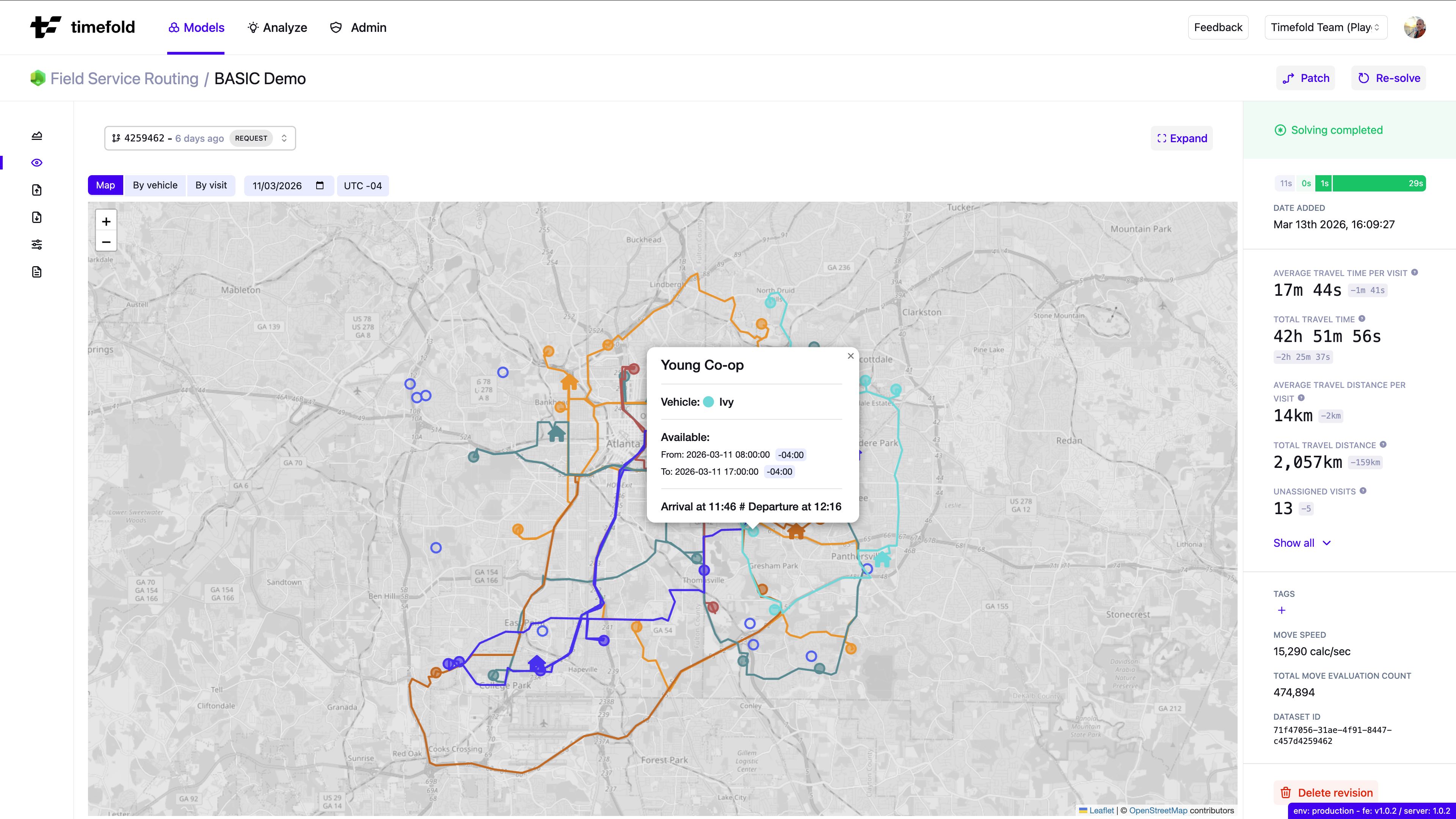
Primary focus: Spatial overview of all vehicle routes.
The Map tab displays all vehicle routes for the selected day on a zoomable geographic map. Each vehicle is assigned a distinct color, and its route is drawn as a colored line that follows the road path from stop to stop. While the model solves, the map shows Recalculating routes in its top-right corner until the roads of the last solution arrive. The map draws straight lines between stops only when the roads could not load. The stops show as soon as the dataset loads, and the route lines follow when the roads arrive.
The map includes:
-
Route lines: Colored paths showing the order in which each vehicle travels between its stops.
-
Start location markers: House icons where each vehicle shift starts, colored to match their route.
-
End location markers: Flag icons where a vehicle shift ends, when it ends at a different place than it starts.
-
Visit markers: Numbered markers at each visit location, in the color of the assigned vehicle, where the number is the visit’s stop order on the route.
-
Unassigned visits: Red diamond markers at the location of each visit that the model leaves unassigned, or gray diamonds before a solve.
-
Breaks: A small break badge on the corner of the stop where a break takes place.
-
Day boundaries: A marker at the point where a drive passes midnight.
-
Areas: Each vehicle’s required area as a tinted area and its preferred area as a dotted line, in the vehicle’s color.
-
Unmet requirements: A small red badge on a visit marker when the assigned vehicle shift doesn’t meet a required skill or tag of the visit: a tool icon for a skill and a tag icon for a tag.
The layers button in the map’s corner shows or hides the required and preferred areas.
When a vehicle shift spans several days, for example a linked shift that the model uses, the map draws it as one route. The map numbers only the visits that start on the selected day. The map draws the legs of the shift’s other days as a dotted line in the vehicle color, with their visits as small rings.
The spatial layout makes cross-route patterns immediately visible: which vehicles stay central, which cover outlying areas, and where routes overlap. The Reset zoom button returns the map to the view that shows every stop and route.
Hover over a marker to highlight that vehicle’s route. Click a marker to open a card with its details:
-
Start location markers: The vehicle and day, the shift hours, the departure time and the travel time to the first visit, the number of visits, where the shift returns, the travel, service, break, and waiting time, and the vehicle’s skills and tags.
-
End location markers: The arrival time and the travel time from the last visit.
-
Visit markers: The vehicle, the stop number, and the day, the arrival, service start, and departure times, the time window, the travel to the visit, the duration, the priority, and the required skills and tags.
For an assigned visit, the card checks each required skill and tag against the vehicle shift:
-
A check mark on a green badge shows a skill or tag that the shift provides.
-
A cross on a red badge shows a skill or tag that the shift is missing, or a skill that the shift has at a lower level than required.
-
A dashed outline shows a skill or tag that a temporary skill set or tag set provides.
The visit cards on the By vehicle and By visit tabs show the same badges.
The card of a vehicle’s marker has a Filter on button, which sets the Vehicles filter to that vehicle. The map fades the stops and breaks that the filter leaves out.
Under the map, the By vehicle timeline shows the selected day for the same filter, five vehicles per page. Hover over a row to highlight that vehicle’s route on the map. Hover over a route to mark its row and show the page with that row. Click a row to keep its route highlighted, and click it again or press Escape to release it.
When the dataset records an actual arrival, service start, or departure for a visit, the visit card shows that time.
When the actual time differs from the plan, a short note gives the planned time and the difference, for example 10:49 (planned 10:53) · travel 4 min shorter, 3 min unplanned waiting, or service 10 min longer.
By vehicle
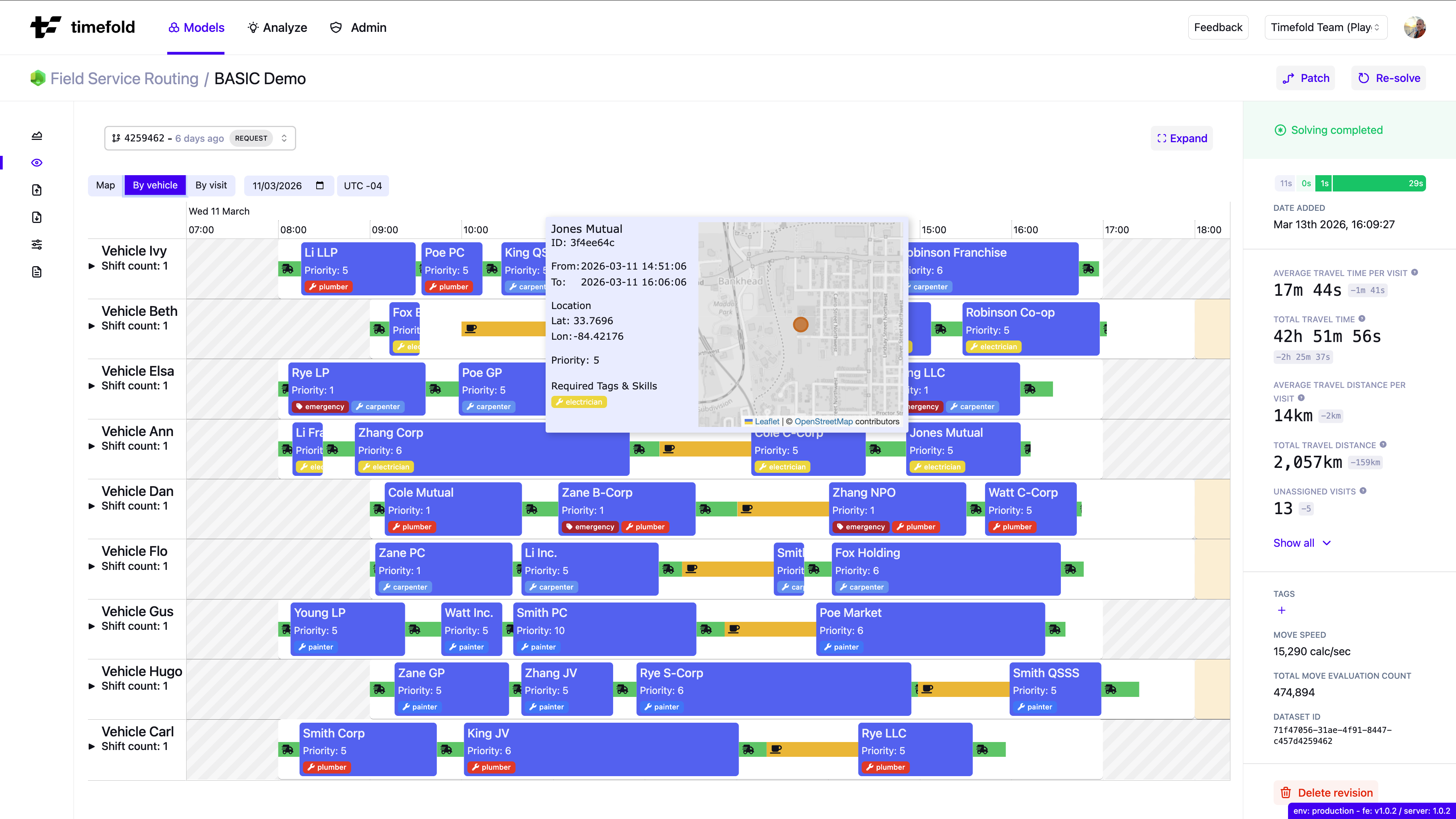
Primary focus: Detailed vehicle-level schedule validation.
The By vehicle tab shows the selected dates as a Gantt-style timeline where each row is a vehicle with all of its shifts in those dates, and each block is a scheduled visit. Hold Ctrl (⌘ on macOS) and scroll to zoom the timeline.
The left side of each row displays:
-
The vehicle’s name and route color.
-
The number of visits, and the used hours against the shift hours, for example
8 / 9h. -
A bar that splits the shift time into service, travel, waiting, breaks, and unused time.
-
The vehicle’s skill and tag badges.
Each visit block displays:
-
The visit name and its service start time.
-
A count of the visit’s required skills and tags, for example
+1.
The timeline also shows:
-
Travel segments: Small truck icons between blocks, for the travel between visits.
-
Breaks: Blocks with a coffee cup icon for scheduled breaks.
-
Waiting time: Orange blocks with a clock icon, for the time a vehicle waits before a visit can start.
-
Outside shift hours: A gray wash outside the vehicle’s shifts.
-
Available overtime: A faint tint beyond the shift end when the vehicle has allowed overtime.
-
Freeze time: A labeled line at the freeze time, when the dataset has one.
-
Pinned visits: A pin icon on each visit the model pins: before the freeze time, by a pin request, or by recorded actual times. On a short visit, the pin replaces the visit name. Zoom in if a very short visit shows no pin.
A legend below the timeline names these marks: Outside shift hours, Available overtime, and Unreachable route.
Hover over any visit block to see a card with detailed information about that visit, such as its arrival, service start, and departure times, its time window, travel, duration, priority, location, and required skills. Hover over a vehicle’s name to see a card with its time capacity, shift duration, available and used overtime, and its service, travel, waiting, and break time.
When a filter is set, the timeline grays the items that the filter leaves out instead of hiding them, so a matching visit shows within its whole route. Travel, waiting time, and breaks follow the visit they lead to.
The vehicles with visits in the selected dates come first, and each part is ordered by vehicle ID. The timeline shows ten vehicles per page. Vehicles with at least one visit in the selected dates come first, then vehicles without visits. Each group is in name order. When you change the dates, or a solve moves visits between days, a vehicle can move to another page. When there are more, pagination controls above the timeline, on the right, allow you to navigate through vehicles.
When to use
Use the By vehicle tab when you want to:
-
Validate the full daily schedule for a specific vehicle.
-
Check whether breaks are placed correctly within each vehicle’s shift.
-
Identify vehicles that are running over their shift window.
-
Explain individual assignments to dispatchers or field managers.
By visit
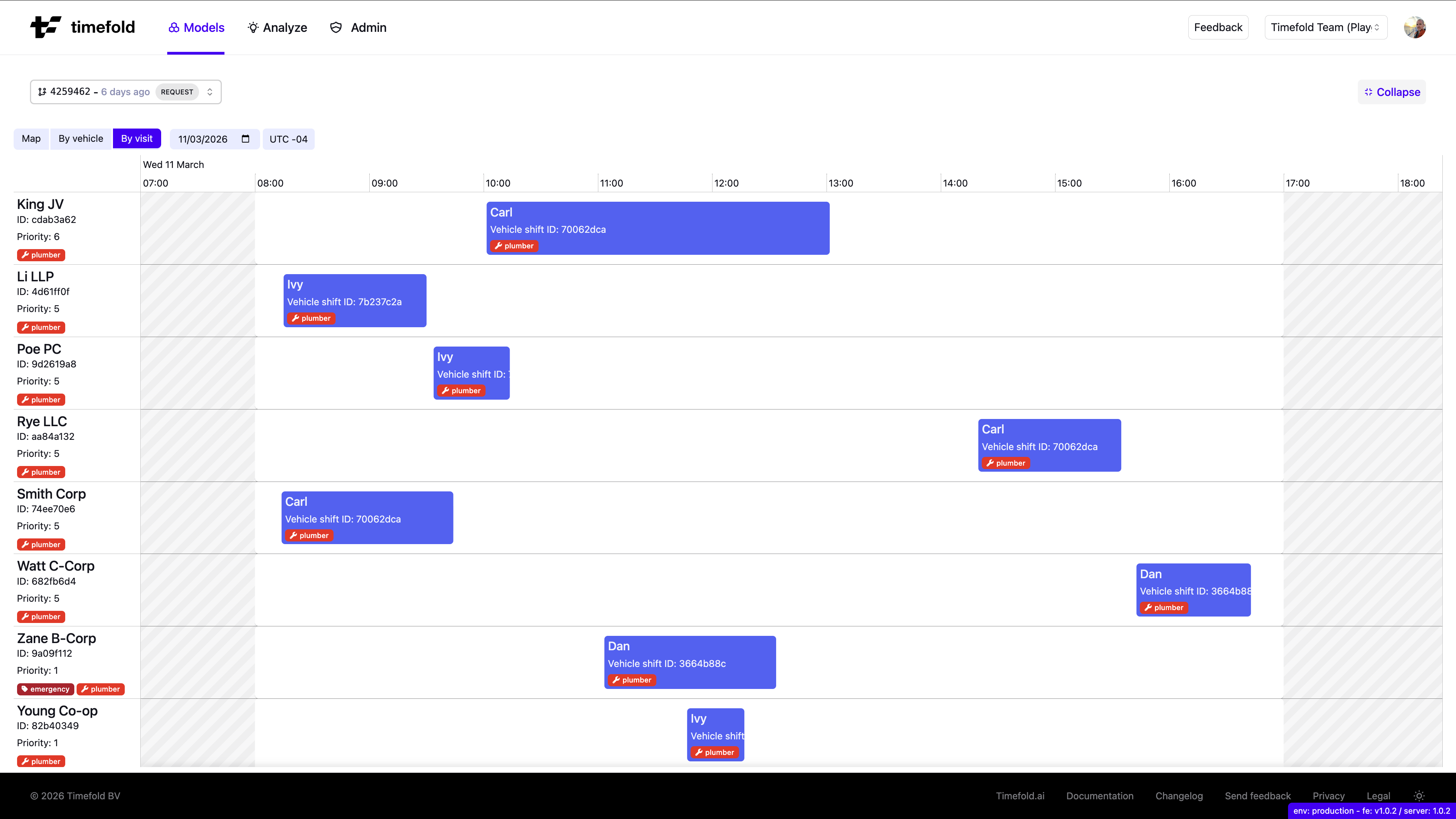
Primary focus: Visit-centric assignment and time window validation.
The By visit tab shows the selected dates as a timeline where each row is a visit and each block shows when the assigned vehicle serves it.
The left side of each row displays:
-
The visit name.
-
Required skill and tag badges.
-
An Unassigned badge when the model leaves the visit unassigned.
Each block spans the visit’s service, from service start to departure, and displays:
-
The assigned vehicle name and the service start time.
A gray wash covers the time outside the visit’s time window, so you can see at a glance whether a block falls inside it. A legend below the timeline names this mark: Outside time window.
Hover over a block to see a card with the visit’s schedule and details. Hover over a visit name to see a card with its time window, SLA end, priority, duration, and required skills and tags.
Unassigned visits appear as rows with an Unassigned badge and no block, making it easy to spot gaps in coverage at a glance.
The timeline shows ten visits per page, with pagination controls above the timeline, on the right.
When to use
Use the By visit tab when you want to:
-
Check that all visits have been assigned.
-
Verify that visits are scheduled within their required time windows.
-
Identify visits with missing skill coverage or unresolvable constraints.
-
Review the customer-side view of the plan (as opposed to the vehicle-side view).
Recommended analysis workflow
A structured approach:
-
Pick a day with the date control after the tabs.
-
Start with the Map tab to get a spatial overview of the day’s routes.
-
Switch to By vehicle to inspect individual vehicle schedules and detect overruns or misplaced breaks.
-
Use By visit to confirm all visits are assigned and within their time windows.
-
Validate utilization and balance across the fleet on the Efficiency X-Ray page.
-
Use these insights to inform strategic decisions and test different scenarios with Experiments.
Next
The visualizations help you understand the what of a routing plan, which is a first step to understanding the why and the so what.
-
For guidance on how to validate and explain optimized plans, see the Validating an optimized plan with Explainable AI guide. This guide explains why trust and explainability matter when presenting a plan to planners and stakeholders. How to check correctness, understand trade-offs, and communicate why certain assignments were made. It shows how visualizations, real-world metrics, and explainability features work together to build confidence in a schedule rather than treating it as a black box.
-
For a broader view on diagnosing and resolving operational bottlenecks, the Uncovering inefficiencies in operational planning guide provides useful context. It discusses common sources of planning inefficiencies (such as under- or over-utilization, skill mix issues, and demand imbalances) and how planning optimization can help you pinpoint structural problems in your workforce plan.
-
Once you’ve identified a scenario worth testing, use Experiments to systematically compare it against your baseline before applying it to production.