Minutes worked per period
There are different techniques for managing employees' working hours.
For different scenarios see Work limits.
A period can be defined as a week, month, or the entire schedule.
This guide explains managing employees' hours with minutes worked per period:
Define minutes worked per period
Learn how to configure an API Key to run the examples in this guide:
In the examples, replace |
Period rules are defined in contracts:
{
  "contracts": [
    {
      "id": "partTimeContract",
      "periodRules": [
        {
          "id": "Max8HoursPerDay",
          "period": "DAY",
          "satisfiability": "REQUIRED",
          "minutesWorkedLimit": {
            "minutesWorkedMax": 480
          }
        },
        {
          "id": "Max32HoursPerWeek",
          "period": "WEEK",
          "satisfiability": "REQUIRED",
          "minutesWorkedLimit": {
            "minutesWorkedMax": 1920
          }
        }
      ]
    }
  ]
}
Period rules define how many minutes employees work in a given period. For instance, 480 minutes (8 hours) per day or 1,920 minutes (32 hours) per week.
PeriodRules must include an ID.
period sets the period the rule applies to, for instance, DAY, WEEK, MONTH, YEAR, SCHEDULE.
Further information about period:
DAY spans a single day and occurs every day in the schedule.
WEEK spans 7 days and occurs every week (including partial weeks) in the schedule.
The default start of the week is Monday, but this can be overridden to any day in the week:
{
  "scheduleParameterization": {
    "weekStart": "THURSDAY"
  }
}
MONTH spans the entire month.
MONTH has a variable number of days depending on the days in the month and occurs every calendar month (including partial months) in the schedule.
YEAR spans the entire year.
YEAR has a variable number of days depending on the days in the year, and occurs every calendar year (including partial years) in the schedule.
SCHEDULE spans the entire schedule.
| You can define custom periods to apply to this rule in the following way: |
{
  "scheduleParameterization": {
    "periods": [
      {
        "id": "PAY_PERIOD",
        "dateSpans": [
          {
            "start": "2023-01-01",
            "end": "2023-01-15"
          }
        ]
      }
    ]
  }
}
The start and end dates are inclusive.
Learn about counting days in rules:
By default, rules count shifts within the defined period or rolling window if the shift starts within it. For instance, if you define a rule that an employee can only work one shift per day, a night shift that started on the previous day but ends the following morning will not be counted towards the limits specified in the rule.
To change this behavior, change the field periodShiftOverlapKind from START_ONLY to START_AND_END.
-
Period rule
-
Rolling-window rule
{
  "periodRules": [
    {
      "id": "Max8HoursPerDayFullTime",
      "period": "DAY",
      "minutesWorkedLimit": {
        "minutesWorkedMax": 480
      },
      "satisfiability": "REQUIRED",
      "periodShiftOverlapKind": "START_AND_END"
    }
  ]
}
{
"rollingWindowRules": [
{
"id": "Max8HoursPerDayRolling",
"rollingWindow": {
"type": "DAILY",
"size": 1
},
"minutesWorkedLimit": {
"minutesWorkedMax": 480
},
"satisfiability": "REQUIRED",
"periodShiftOverlapKind": "START_AND_END"
}
]
}This makes the rule count all parts of shifts that overlap with the defined period or rolling window. In the previous example, the night shift starts on the previous day and ends the following morning. With START_AND_END, the portion of the night shift that overlaps the target period or window is counted toward the rule.
The default behavior of all rules when this field is not specified is START_ONLY.
minutesWorkedLimit.minutesWorkedMax sets the limit on how many minutes the employee can work in the specified period.
By default, breaks in shifts do not count towards working time. It is possible to specify which breaks are subtracted from working time for the rule by using unloggedBreakTags.
Further information about subtracting breaks from working time based on tags:
Breaks with specific tags are not logged towards the working time of this rule. Tags are defined in shift breaks:
{
  "shifts": [
    {
      "id": "shift 1",
      "start": "2027-02-01T09:00:00Z",
      "end": "2027-02-01T18:00:00Z",
      "breaks": [
        {
          "start": "2027-02-01T10:30:00Z",
          "end": "2027-02-01T10:45:00Z",
          "tags": ["teaBreak"]
        },
        {
          "start": "2027-02-01T12:00:00Z",
          "end": "2027-02-01T13:00:00Z",
          "tags": ["lunchBreak"]
        },
        {
          "start": "2027-02-01T16:30:00Z",
          "end": "2027-02-01T16:45:00Z",
          "tags": ["teaBreak"]
        }
      ]
    }
  ]
}
Use unloggedBreakTags to specify which breaks are subtracted from the working time for this rule.
Breaks which do not match the tags will be counted as working time.
Do not use this field if all breaks must be subtracted from working time, regardless of their tags.
breakTagMatches can be set to ALL or ANY.
The default behavior for breakTagMatches is ALL, and if omitted, the default ALL will be used.
The rule can define only unloggedBreakTags.
{
  "unloggedBreakTags": ["lunchBreak"],
  "breakTagMatches": "ALL"
}
In the above example, breaks which have the tag lunchBreak will be subtracted from working time for the rule. All other breaks will count as working time.
With breakTagMatches set to ALL, all tags defined by the rule’s unloggedBreakTags attribute must be present in the break in order for it to be subtracted from working time.
With breakTagMatches set to ANY, at least one tag defined by the rule’s unloggedBreakTags attribute must be present in the break.
|
In some situations it is necessary to specify rules that apply to both the day and the week. If a rule for the week is included that sets a maximum number of hours per week at 40, but no rule is included for the day period, an employee could be assigned continuous shifts for 40 hours and then nothing for the rest of the week. Similarly, if a rule is included that sets a maximum number of hours per day at 8, but no rule is included for the week, an employee could be assigned an 8-hour shift every single day with no days off. |
Each employee must specify which contracts apply to them:
{
  "employees": [
    {
      "id": "Ann",
      "contracts": [
        "partTimeContract"
      ]
    }
  ]
}
Filter shifts with tags
periodRules can include or exclude shifts based on shift tags.
{
  "periodRules": [
    {
      "id": "Max8HoursPerDay",
      "period": "DAY",
      "satisfiability": "REQUIRED",
      "includeShiftTags": ["Part-time"],
      "shiftTagMatches": "ALL",
      "minutesWorkedLimit": {
        "minutesWorkedMax": 480
      }
    }
  ]
}
Further information about including or excluding shifts with shift tags:
Shifts with specific tags can be included or excluded by the rule. Tags are defined in shifts:
{
  "shifts": [
    {
      "id": "2027-02-01",
      "start": "2027-02-01T09:00:00Z",
      "end": "2027-02-01T17:00:00Z",
      "tags": ["Part-time"]
    }
  ]
}
Use includeShiftTags to include shifts with specific tags or excludeShiftTags to exclude shifts with specific tags.
shiftTagMatches can be set to ALL or ANY.
The default behavior for shiftTagMatches is ALL, and if omitted, the default ALL will be used.
The rule can define either includeShiftTags or excludeShiftTags, but not both.
{
  "includeShiftTags": ["Part-time", "Weekend"],
  "shiftTagMatches": "ALL"
}
With shiftTagMatches set to ALL, all tags defined by the rule’s includeShiftTags attribute must be present in the shift. With shiftTagMatches set to ANY, at least one tag defined by the rule’s includeShiftTags attribute must be present in the shift.
{
  "excludeShiftTags": ["Part-time", "Weekend"],
  "shiftTagMatches": "ALL"
}
With shiftTagMatches set to ALL, all tags defined by the rule’s excludeShiftTags attribute cannot be present in the shift.
This is useful when you want to exclude things in combination with each other.
For instance, excluding the shift tags Part-time and Weekend with shiftTagMatches set to All, will exclude shifts that include the tags Part-time and Weekend from the rule.
Shifts tagged only Part-time or only Weekend will not be excluded.
With shiftTagMatches set to ANY, any of the tags defined by the rule’s excludeShiftTags attribute cannot be present in the shift.
This is useful when you need to exclude tags regardless of their relationship to other tags.
For instance, excluding the shift tags Part-time and Weekend with shiftTagMatches set to ANY, will exclude any shift that includes the tags Part-time or Weekend, whether they occur together or not.
Count only minutes within a daily time interval
periodRules can count only the portion of shifts that overlap with a specific daily time interval using minutesWorkedLimit.countOnlyBetween.
This is useful for limiting hours worked during specific times of day, such as night shifts.
{
  "periodRules": [
    {
      "id": "Max38HoursNightWorkPerWeek",
      "period": "WEEK",
      "satisfiability": "REQUIRED",
      "minutesWorkedLimit": {
        "minutesWorkedMax": 2280,
        "countOnlyBetween": {
          "start": "00:00",
          "end": "06:00"
        }
      }
    }
  ]
}
The countOnlyBetween interval specifies:
-
start: The start time of the daily interval (inclusive). -
end: The end time of the daily interval (exclusive). Ifendis less thanstart, the interval spans midnight into the next day (e.g.,22:00to06:00).
Time is interpreted in the employee’s time zone. For multi-day shifts, the overlap is calculated for each day.
Required minutes worked per period
When the satisfiability of the rule is REQUIRED, the Minutes worked per period not in required range for employee hard constraint is invoked, which makes sure the number of minutes worked doesn’t exceed the limit specified in minutesWorkedMax.
Shifts will be left unassigned if assigning them would break the Minutes worked per period not in required range for employee constraint.
Required minutes worked per period example
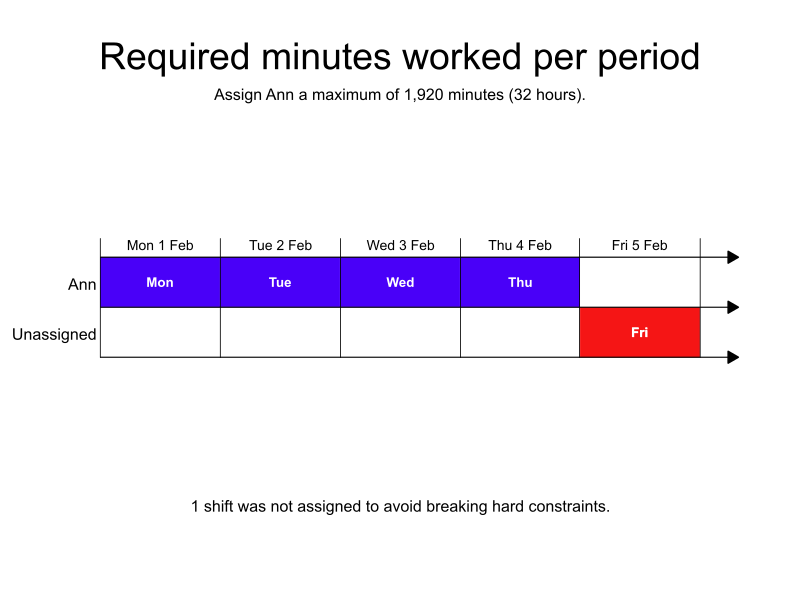
In the following example, there are five shifts, one employee, and a rule with a required satisfiability that specifies the employee can work at most 1,920 minutes (32 hours) per week.
Four shifts, totaling 1,920 minutes, are assigned and one shift is left unassigned to avoid breaking the Minutes worked per period not in required range for employee hard constraint.
-
Input
-
Output
Try this example in Timefold Platform by saving this JSON into a file called sample.json and make the following API call:
|
curl -X POST -H "Content-type: application/json" -H 'X-API-KEY: <API_KEY>' https://app.timefold.ai/api/models/employee-scheduling/v1/schedules [email protected]{
"config": {
"run": {
"name": "Required minutes worked per period example"
}
},
"modelInput": {
"contracts": [
{
"id": "partTimeContract",
"periodRules": [
{
"id": "Max8HoursPerDay",
"period": "DAY",
"satisfiability": "REQUIRED",
"minutesWorkedLimit": {
"minutesWorkedMax": 480
}
},
{
"id": "Max32HoursPerWeek",
"period": "WEEK",
"satisfiability": "REQUIRED",
"minutesWorkedLimit": {
"minutesWorkedMax": 1920
}
}
]
}
],
"employees": [
{
"id": "Ann",
"contracts": [
"partTimeContract"
]
}
],
"shifts": [
{
"id": "Mon",
"start": "2027-02-01T09:00:00Z",
"end": "2027-02-01T17:00:00Z"
},
{
"id": "Tue",
"start": "2027-02-02T09:00:00Z",
"end": "2027-02-02T17:00:00Z"
},
{
"id": "Wed",
"start": "2027-02-03T09:00:00Z",
"end": "2027-02-03T17:00:00Z"
},
{
"id": "Thu",
"start": "2027-02-04T09:00:00Z",
"end": "2027-02-04T17:00:00Z"
},
{
"id": "Fri",
"start": "2027-02-05T09:00:00Z",
"end": "2027-02-05T17:00:00Z"
}
]
}
}
To request the solution, locate the ID from the response to the post operation and append it to the following API call:
|
curl -X GET -H 'X-API-KEY: <API_KEY>' https://app.timefold.ai/api/models/employee-scheduling/v1/schedules/<ID>{
"metadata": {
"id": "ID",
"name": "Required minutes worked per period example",
"submitDateTime": "2025-03-31T06:35:05.908682739Z",
"startDateTime": "2025-03-31T06:35:21.38159037Z",
"activeDateTime": "2025-03-31T06:35:21.634093236Z",
"completeDateTime": "2025-03-31T06:40:22.536142384Z",
"shutdownDateTime": "2025-03-31T06:40:22.832585412Z",
"solverStatus": "SOLVING_COMPLETED",
"score": "0hard/-1medium/0soft",
"tags": [
"system.profile:default"
],
"validationResult": {
"summary": "OK"
}
},
"modelOutput": {
"shifts": [
{
"id": "Mon",
"employee": "Ann"
},
{
"id": "Tue",
"employee": "Ann"
},
{
"id": "Wed",
"employee": "Ann"
},
{
"id": "Thu",
"employee": "Ann"
},
{
"id": "Fri",
"employee": null
}
]
},
"inputMetrics": {
"employees": 1,
"shifts": 5,
"pinnedShifts": 0
},
"kpis": {
"assignedShifts": 4,
"unassignedShifts": 1,
"workingTimeFairnessPercentage": null,
"disruptionPercentage": 0.0,
"averageDurationOfEmployeesPreferencesMet": null,
"minimumDurationOfPreferencesMetAcrossEmployees": null,
"averageDurationOfEmployeesUnpreferencesViolated": null,
"maximumDurationOfUnpreferencesViolatedAcrossEmployees": null,
"activatedEmployees": 1,
"assignedMandatoryShifts": 4,
"assignedOptionalShifts": 0,
"travelDistance": 0
}
}Preferred minutes worked per period
When the satisfiability of the rule is PREFERRED, the Minutes worked per period not in preferred range for employee soft constraint is invoked.
With a satisfiability of PREFERRED a minutesWorkedLimit.minutesWorkedMin value can also be provided to set the preferred minimum number of minutes worked.
REQUIRED satisfiability is not supported with minutesWorkedLimit.minutesWorkedMin.
|
{
  "contracts": [
    {
      "id": "partTimeContract",
      "periodRules": [
        {
          "id": "Min2HoursMax8HoursPerDay",
          "period": "DAY",
          "satisfiability": "PREFERRED",
          "minutesWorkedLimit": {
            "minutesWorkedMin": 120,
            "minutesWorkedMax": 480
          }
        },
        {
          "id": "Min16Max32HoursPerWeek",
          "period": "WEEK",
          "satisfiability": "PREFERRED",
          "minutesWorkedLimit": {
            "minutesWorkedMin": 960,
            "minutesWorkedMax": 1920
          }
        }
      ]
    }
  ]
}
The Minutes worked per period not in preferred range for employee soft constraint is invoked when satisfiability is PREFERRED and an employee’s total counted minutes worked in a period is below minutesWorkedLimit.minutesWorkedMin or above minutesWorkedLimit.minutesWorkedMax.
The constraint adds a soft penalty to the dataset score when this preferred range is violated. The penalty is the minutes outside the preferred range multiplied by the employee priority multiplier and the contract’s priority weight, incentivizing Timefold to keep worked minutes within the preferred bounds.
Shifts will still be assigned even if assigning them breaks this constraint.
|
Every soft constraint has a weight that can be configured to change the relative importance of the constraint compared to other constraints. Learn about constraint weights. |
| This rule is more likely to be satisfied for employees with a higher employee priority. See Employee priority for more details. |
Preferred minutes worked per period example
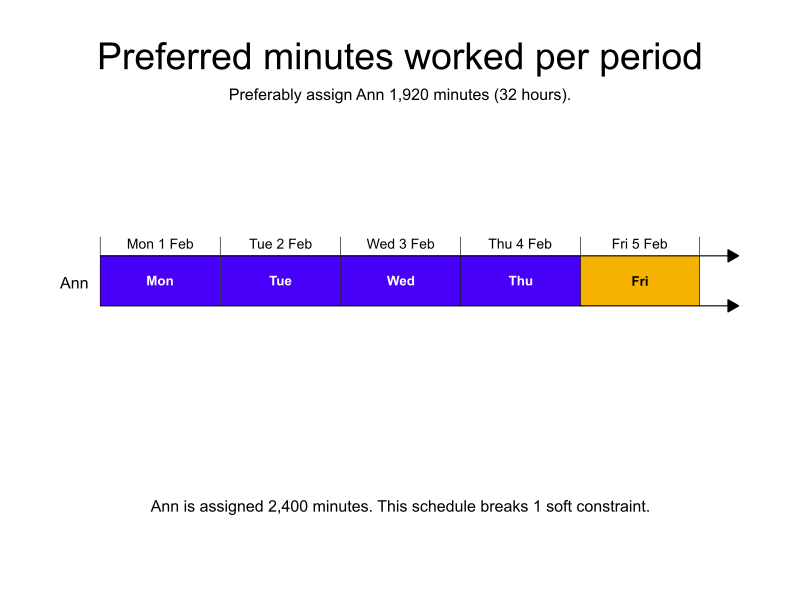
In the following example, there are five shifts, one employee, and a rule with a preferred satisfiability that specifies the employee should only work 1920 minutes (32 hours) per week.
All five shifts are assigned, totaling 2,400 minutes, and a soft penalty is applied to the dataset score.
-
Input
-
Output
Try this example in Timefold Platform by saving this JSON into a file called sample.json and make the following API call:
|
curl -X POST -H "Content-type: application/json" -H 'X-API-KEY: <API_KEY>' https://app.timefold.ai/api/models/employee-scheduling/v1/schedules [email protected]{
"config": {
"run": {
"name": "Preferred minutes worked per period example"
}
},
"modelInput": {
"contracts": [
{
"id": "partTimeContract",
"periodRules": [
{
"id": "Max8HoursPerDay",
"period": "DAY",
"satisfiability": "PREFERRED",
"minutesWorkedLimit": {
"minutesWorkedMax": 480
}
},
{
"id": "Max32HoursPerWeek",
"period": "WEEK",
"satisfiability": "PREFERRED",
"minutesWorkedLimit": {
"minutesWorkedMax": 1920
}
}
]
}
],
"employees": [
{
"id": "Ann",
"contracts": [
"partTimeContract"
]
}
],
"shifts": [
{
"id": "Mon",
"start": "2027-02-01T09:00:00Z",
"end": "2027-02-01T17:00:00Z"
},
{
"id": "Tue",
"start": "2027-02-02T09:00:00Z",
"end": "2027-02-02T17:00:00Z"
},
{
"id": "Wed",
"start": "2027-02-03T09:00:00Z",
"end": "2027-02-03T17:00:00Z"
},
{
"id": "Thu",
"start": "2027-02-04T09:00:00Z",
"end": "2027-02-04T17:00:00Z"
},
{
"id": "Fri",
"start": "2027-02-05T09:00:00Z",
"end": "2027-02-05T17:00:00Z"
}
]
}
}
To request the solution, locate the ID from the response to the post operation and append it to the following API call:
|
curl -X GET -H 'X-API-KEY: <API_KEY>' https://app.timefold.ai/api/models/employee-scheduling/v1/schedules/<ID>{
"metadata": {
"id": "ID",
"name": "Preferred minutes worked per period example",
"submitDateTime": "2025-05-23T04:28:00.33365481Z",
"startDateTime": "2025-05-23T04:28:11.482387879Z",
"activeDateTime": "2025-05-23T04:28:11.680636874Z",
"completeDateTime": "2025-05-23T04:28:42.436311376Z",
"shutdownDateTime": "2025-05-23T04:28:42.689771356Z",
"solverStatus": "SOLVING_COMPLETED",
"score": "0hard/0medium/-960soft",
"tags": [
"system.profile:default"
],
"validationResult": {
"summary": "OK"
}
},
"modelOutput": {
"shifts": [
{
"id": "Mon",
"employee": "Ann"
},
{
"id": "Tue",
"employee": "Ann"
},
{
"id": "Wed",
"employee": "Ann"
},
{
"id": "Thu",
"employee": "Ann"
},
{
"id": "Fri",
"employee": "Ann"
}
]
},
"inputMetrics": {
"employees": 1,
"shifts": 5,
"pinnedShifts": 0
},
"kpis": {
"assignedShifts": 5,
"unassignedShifts": 0,
"disruptionPercentage": 0.0,
"activatedEmployees": 1,
"assignedMandatoryShifts": 5,
"assignedOptionalShifts": 0,
"travelDistance": 0
}
}Managing overtime
Rules with a satisfiability of REQUIRED put a hard limit on how much work employees can be assigned (minutes, hours, days, shifts), and doesn’t assign overtime.
A rule with a satisfiability of REQUIRED that states an employee can work a maximum of 1920 minutes worked per period, will never assign the employee more than 1920 minutes worked per period, even if assigning overtime would be beneficial to the overall schedule.
To allow for the possibility of overtime, use rules with a satisfiability of PREFERRED.
Set a rule with a PREFERRED satisfiability for the maximum number of minutes worked per period.
Now, a rule with a satisfiability of PREFERRED that states an employee can preferably work a maximum of 1920 minutes worked per period will allow the employee to be assigned more minutes worked per period (overtime) than specified by the rule when it is necessary to do so.
To place a limit on the total amount of overtime employees can be assigned, include both:
-
A rule with
PREFERREDsatisfiability for the maximum number of minutes worked per period that is equivalent to the employees normal minutes worked per period. -
A rule with
REQUIREDsatisfiability for the maximum number of minutes worked per period (regular hours plus overtime).
The difference between the PREFERRED maximum minutes worked per period and REQUIRED maximum minutes worked per period is the total amount of overtime that can be assigned to employees.
Next
-
See the full API spec or try the online API.
-
Learn more about employee shift scheduling from our YouTube playlist.
-
See other options for managing employees' work hours: Work limits.