Consecutive minutes off in a rolling window
There are different techniques for managing employee’s time off.
Consecutive minutes off in a rolling window is useful for employees who don’t work conventional Monday to Friday, 9am to 5pm, shifts. For instance, if an employee can work any five days in a 7-day period with 2880 consecutive minutes (48 hours) off.
A rolling window applies a limit to every time span of a given length as it moves across the schedule.
Unlike a period rule, which applies to a fixed calendar period, a rolling window rule takes a size.
The size, together with the type (HOURLY, DAILY, WEEKLY, or MONTHLY), sets the length of each window.
For example, a DAILY window with size: 10 applies the rule to every ten-day span in the schedule, with a new span starting on each day, so the spans overlap.
This guide explains managing consecutive minutes off in a rolling window:
- Define consecutive minutes off in a rolling window rules
- Required consecutive minutes off in rolling windows
- Preferred consecutive minutes off in rolling windows
- Complex consecutive minutes off interval in a rolling window
- Total consecutive minutes off minimum in a rolling window
- Apply rules conditionally
Define consecutive minutes off in a rolling window rules
Learn how to configure an API Key to run the examples in this guide:
In the examples, replace |
Rolling window rules are defined in contracts:
{
  "contracts": [
    {
      "id": "fullTimeContract",
      "rollingWindowRules": [
        {
          "id": "2880ConsecutiveMinutesOffRollingWindow",
          "rollingWindow": {
            "type": "DAILY",
            "size": 7
          },
          "consecutiveMinutesOffLimit":
          {
            "consecutiveMinutesOffMin": 2880
          },
          "satisfiability": "REQUIRED"
        }
      ]
    }
  ]
}
You can define as many rollingWindowRules as required.
rollingWindowRules must include an ID.
rollingWindow specifies the type and size of the window.
Further information about rollingWindows:
size sets how many instances of type are included in the rolling window, for instance, the following example specifies a rolling window of 7 days.
{
  "rollingWindow": {
    "type": "DAILY",
    "size": 7
  }
}
There are four types of rolling windows: HOURLY, DAILY, WEEKLY and MONTHLY.
The type specifies how the rolling window progress, hour-by-hour, day-by-day, week-by-week or month-by-month.
-
HOURLYspans the number of hours specified insizeand occurs every hour when shifts are scheduled. The hourly window starts when a shift starts (for example 8:00, or 14:30) -
DAILYspans the number of days specified insizefor 24-hour periods and covers the entire schedule. The daily window starts at the beginning of a calendar day (midnight). -
WEEKLYspans the number of weeks specified insizeand occurs every week (including partial weeks) in the schedule. The weekly window starts at the beginning of a calendar week (usually Monday, or Sunday). -
MONTHLYspans the number of calendar months specified insizeand occurs every month (including partial months) in the schedule. The monthly window starts on the first day of a calendar month.
By default, the start of the week is Monday, however, this can be overridden for the entire schedule:
{
  "scheduleParameterization": {
    "weekStart": "THURSDAY"
  }
}
Changing weekStart is a global change that applies to the entire dataset.
|
The consecutiveMinutesOffLimit object must include consecutiveMinutesOffMin with the minimum number of consecutive minutes off.
Filter shifts with tags
RollingWindowRules can include or exclude shifts based on tags.
{
  "rollingWindowRules": [
    {
      "id": "2880ConsecutiveMinutesOffRollingWindow",
      "includeShiftTags": ["Part-time"],
      "rollingWindow": {
        "type": "DAILY",
        "size": 7
      }
    }
  ]
}
Further information about including or excluding shifts with shift tags:
Shifts with specific tags can be included or excluded by the rule. Tags are defined in shifts:
{
  "shifts": [
    {
      "id": "2027-02-01",
      "start": "2027-02-01T09:00:00Z",
      "end": "2027-02-01T17:00:00Z",
      "tags": ["Part-time"]
    }
  ]
}
Use includeShiftTags to include shifts with specific tags or excludeShiftTags to exclude shifts with specific tags.
shiftTagMatches can be set to ALL or ANY.
The default behavior for shiftTagMatches is ALL, and if omitted, the default ALL will be used.
The rule can define either includeShiftTags or excludeShiftTags, but not both.
{
  "includeShiftTags": ["Part-time", "Weekend"],
  "shiftTagMatches": "ALL"
}
With shiftTagMatches set to ALL, all tags defined by the rule’s includeShiftTags attribute must be present in the shift. With shiftTagMatches set to ANY, at least one tag defined by the rule’s includeShiftTags attribute must be present in the shift.
{
  "excludeShiftTags": ["Part-time", "Weekend"],
  "shiftTagMatches": "ALL"
}
With shiftTagMatches set to ALL, all tags defined by the rule’s excludeShiftTags attribute cannot be present in the shift.
This is useful when you want to exclude things in combination with each other.
For instance, excluding the shift tags Part-time and Weekend with shiftTagMatches set to All, will exclude shifts that include the tags Part-time and Weekend from the rule.
Shifts tagged only Part-time or only Weekend will not be excluded.
With shiftTagMatches set to ANY, any of the tags defined by the rule’s excludeShiftTags attribute cannot be present in the shift.
This is useful when you need to exclude tags regardless of their relationship to other tags.
For instance, excluding the shift tags Part-time and Weekend with shiftTagMatches set to ANY, will exclude any shift that includes the tags Part-time or Weekend, whether they occur together or not.
Required consecutive minutes off in rolling windows
When the satisfiability of the rule is REQUIRED, the Consecutive minutes off in rolling window not in preferred range for employee hard constraint is invoked,
which makes sure the employee is assigned shifts with a break between two shifts that is not below the limit specified in consecutiveMinutesOffMin.
Shifts will be left unassigned if assigning them would break the Consecutive minutes off in rolling window not in preferred range for employee constraint.
Required consecutive minutes off in rolling windows example
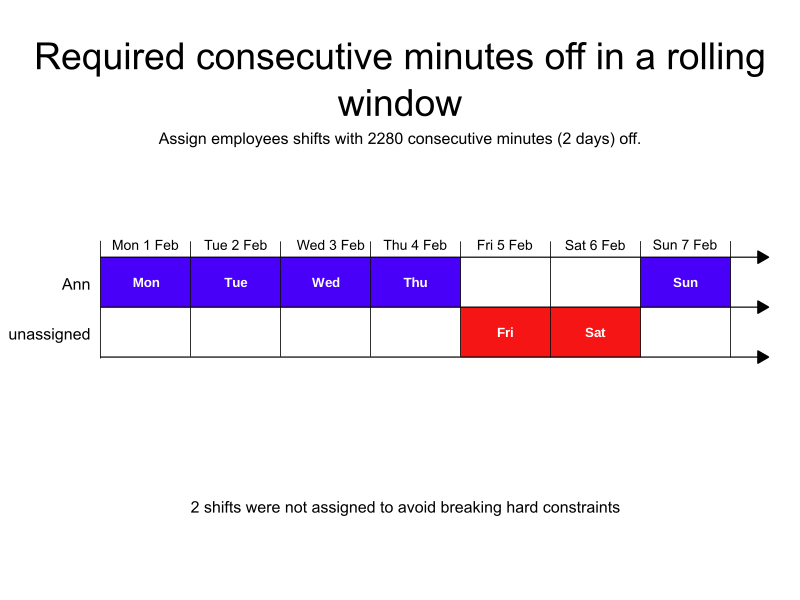
In the following example, there are seven shifts, one employee, and a rule that specifies employees must have 2880 consecutive minutes off in a rolling window of seven days.
Five shifts are assigned, two shifts are not assigned.
-
Input
-
Output
Try this example in Timefold Platform by saving this JSON into a file called sample.json and make the following API call:
|
curl -X POST -H "Content-type: application/json" -H 'X-API-KEY: <API_KEY>' https://app.timefold.ai/api/models/employee-scheduling/v1/schedules [email protected]{
"config": {
"run": {
"name": "Required consecutive minutes off in a rolling window example"
}
},
"modelInput": {
"contracts": [
{
"id": "fullTimeContract",
"rollingWindowRules": [
{
"id": "2880ConsecutiveMinutesOffRollingWindow",
"rollingWindow": {
"type": "DAILY",
"size": 7
},
"consecutiveMinutesOffLimit":
{
"consecutiveMinutesOffMin": 2880
},
"satisfiability": "REQUIRED"
}
]
}
],
"employees": [
{
"id": "Ann",
"contracts": [
"fullTimeContract"
]
}
],
"shifts": [
{
"id": "Mon",
"start": "2027-02-01T09:00:00Z",
"end": "2027-02-01T17:00:00Z"
},
{
"id": "Tue",
"start": "2027-02-02T09:00:00Z",
"end": "2027-02-02T17:00:00Z"
},
{
"id": "Wed",
"start": "2027-02-03T09:00:00Z",
"end": "2027-02-03T17:00:00Z"
},
{
"id": "Thu",
"start": "2027-02-04T09:00:00Z",
"end": "2027-02-04T17:00:00Z"
},
{
"id": "Fri",
"start": "2027-02-05T09:00:00Z",
"end": "2027-02-05T17:00:00Z"
},
{
"id": "Sat",
"start": "2027-02-06T09:00:00Z",
"end": "2027-02-06T17:00:00Z"
},
{
"id": "Sun",
"start": "2027-02-07T09:00:00Z",
"end": "2027-02-07T17:00:00Z"
}
]
}
}
To request the solution, locate the ID from the response to the post operation and append it to the following API call:
|
curl -X GET -H 'X-API-KEY: <API_KEY>' https://app.timefold.ai/api/models/employee-scheduling/v1/schedules/<ID>{
"metadata": {
"id": "ID",
"name": "Required consecutive minutes off in a rolling window example",
"submitDateTime": "2025-05-20T06:50:48.424569649Z",
"startDateTime": "2025-05-20T06:51:00.55293692Z",
"activeDateTime": "2025-05-20T06:51:00.704058777Z",
"completeDateTime": "2025-05-20T06:51:31.731116902Z",
"shutdownDateTime": "2025-05-20T06:51:32.123850049Z",
"solverStatus": "SOLVING_COMPLETED",
"score": "0hard/-2medium/0soft",
"tags": [
"system.profile:default"
],
"validationResult": {
"summary": "OK"
}
},
"modelOutput": {
"shifts": [
{
"id": "Mon",
"employee": "Ann"
},
{
"id": "Tue",
"employee": "Ann"
},
{
"id": "Wed",
"employee": "Ann"
},
{
"id": "Thu",
"employee": "Ann"
},
{
"id": "Fri",
"employee": null
},
{
"id": "Sat",
"employee": null
},
{
"id": "Sun",
"employee": "Ann"
}
]
},
"inputMetrics": {
"employees": 1,
"shifts": 7,
"pinnedShifts": 0
},
"kpis": {
"assignedShifts": 5,
"unassignedShifts": 2,
"workingTimeFairnessPercentage": null,
"disruptionPercentage": 0.0,
"averageDurationOfEmployeesPreferencesMet": null,
"minimumDurationOfPreferencesMetAcrossEmployees": null,
"averageDurationOfEmployeesUnpreferencesViolated": null,
"maximumDurationOfUnpreferencesViolatedAcrossEmployees": null,
"activatedEmployees": 1,
"assignedMandatoryShifts": 5,
"assignedOptionalShifts": 0,
"assignedShiftGroups": null,
"unassignedShiftGroups": null,
"travelDistance": 0
}
}modelOutput contains the schedule with Ann assigned shifts and 2280 consecutive minutes (2 days) off.
inputMetrics provides a breakdown of the inputs in the input dataset.
KPIs provides the KPIs for the output including:
{
  "assignedShifts": 5,
  "unassignedShifts": 2,
  "activatedEmployees": 1,
  "assignedMandatoryShifts": 5
}
Preferred consecutive minutes off in rolling windows
When the satisfiability of the rule is PREFERRED, the Consecutive minutes off in rolling window not in required range for employee soft constraint is invoked.
{
  "contracts": [
    {
      "id": "fullTimeContract",
      "rollingWindowRules": [
        {
          "id": "2880ConsecutiveMinutesOffRollingWindow",
          "rollingWindow": {
            "type": "DAILY",
            "size": 7
          },
          "consecutiveMinutesOffLimit":
          {
            "consecutiveMinutesOffMin": 2880
          },
          "satisfiability": "PREFERRED"
        }
      ]
    }
  ]
}
The Consecutive minutes off in rolling window not in preferred range for employee soft constraint is invoked when satisfiability is PREFERRED and the longest consecutive minutes off within the rolling window is below consecutiveMinutesOffMin.
The constraint adds a soft penalty to the dataset score that is calculated as the consecutive-minutes-off shortfall multiplied by the employee priority multiplier and the contract’s priority weight, incentivizing Timefold to maximize consecutive minutes off up to the preferred minimum.
Shifts will still be assigned even if assigning them breaks this constraint.
|
Every soft constraint has a weight that can be configured to change the relative importance of the constraint compared to other constraints. Learn about constraint weights. |
| This rule is more likely to be satisfied for employees with a higher employee priority. See Employee priority for more details. |
Preferred consecutive minutes off in rolling windows example
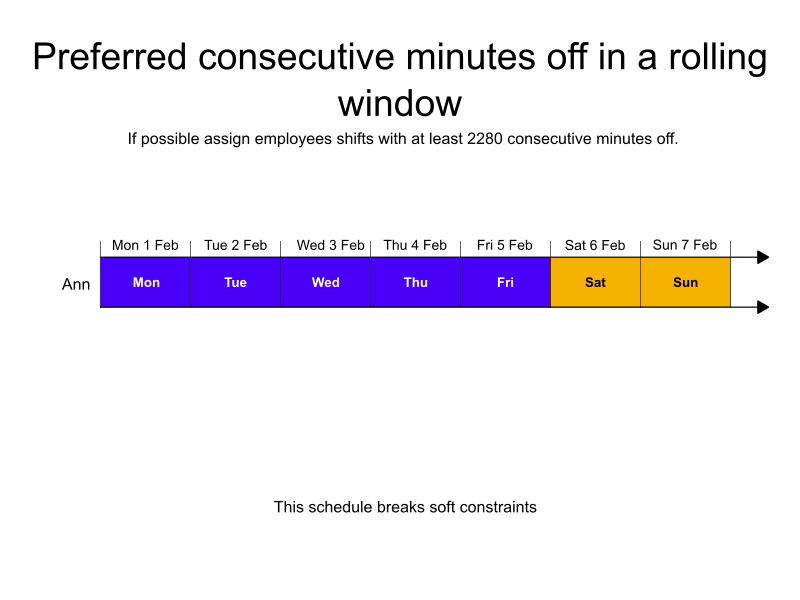
In the following example, there are seven shifts, one employee, and a rule with a preferred satisfiability that states employees should have 2880 consecutive minutes off in a rolling window of seven days.
All seven shifts are assigned, Ann does not get 2880 consecutive minutes off in the rolling window, and a soft penalty is applied to the dataset score.
-
Input
-
Output
Try this example in Timefold Platform by saving this JSON into a file called sample.json and make the following API call:
|
curl -X POST -H "Content-type: application/json" -H 'X-API-KEY: <API_KEY>' https://app.timefold.ai/api/models/employee-scheduling/v1/schedules [email protected]{
"config": {
"run": {
"name": "Preferred consecutive minutes off in a rolling window example"
}
},
"modelInput": {
"contracts": [
{
"id": "fullTimeContract",
"rollingWindowRules": [
{
"id": "2880ConsecutiveMinutesOffRollingWindow",
"rollingWindow": {
"type": "DAILY",
"size": 7
},
"consecutiveMinutesOffLimit":
{
"consecutiveMinutesOffMin": 2880
},
"satisfiability": "PREFERRED"
}
]
}
],
"employees": [
{
"id": "Ann",
"contracts": [
"fullTimeContract"
]
}
],
"shifts": [
{
"id": "Mon",
"start": "2027-02-01T09:00:00Z",
"end": "2027-02-01T17:00:00Z"
},
{
"id": "Tue",
"start": "2027-02-02T09:00:00Z",
"end": "2027-02-02T17:00:00Z"
},
{
"id": "Wed",
"start": "2027-02-03T09:00:00Z",
"end": "2027-02-03T17:00:00Z"
},
{
"id": "Thu",
"start": "2027-02-04T09:00:00Z",
"end": "2027-02-04T17:00:00Z"
},
{
"id": "Fri",
"start": "2027-02-05T09:00:00Z",
"end": "2027-02-05T17:00:00Z"
},
{
"id": "Sat",
"start": "2027-02-06T09:00:00Z",
"end": "2027-02-06T17:00:00Z"
},
{
"id": "Sun",
"start": "2027-02-07T09:00:00Z",
"end": "2027-02-07T17:00:00Z"
}
]
}
}
To request the solution, locate the ID from the response to the post operation and append it to the following API call:
|
curl -X GET -H 'X-API-KEY: <API_KEY>' https://app.timefold.ai/api/models/employee-scheduling/v1/schedules/<ID>{
"metadata": {
"id": "ID",
"name": "Preferred consecutive minutes off in a rolling window example",
"submitDateTime": "2025-05-20T07:44:16.673726099Z",
"startDateTime": "2025-05-20T07:44:28.206497512Z",
"activeDateTime": "2025-05-20T07:44:28.383105657Z",
"completeDateTime": "2025-05-20T07:44:59.218846605Z",
"shutdownDateTime": "2025-05-20T07:44:59.382971006Z",
"solverStatus": "SOLVING_COMPLETED",
"score": "0hard/0medium/-7680soft",
"tags": [
"system.profile:default"
],
"validationResult": {
"summary": "OK"
}
},
"modelOutput": {
"shifts": [
{
"id": "Mon",
"employee": "Ann"
},
{
"id": "Tue",
"employee": "Ann"
},
{
"id": "Wed",
"employee": "Ann"
},
{
"id": "Thu",
"employee": "Ann"
},
{
"id": "Fri",
"employee": "Ann"
},
{
"id": "Sat",
"employee": "Ann"
},
{
"id": "Sun",
"employee": "Ann"
}
]
},
"inputMetrics": {
"employees": 1,
"shifts": 7,
"pinnedShifts": 0
},
"kpis": {
"assignedShifts": 7,
"unassignedShifts": 0,
"workingTimeFairnessPercentage": null,
"disruptionPercentage": 0.0,
"averageDurationOfEmployeesPreferencesMet": null,
"minimumDurationOfPreferencesMetAcrossEmployees": null,
"averageDurationOfEmployeesUnpreferencesViolated": null,
"maximumDurationOfUnpreferencesViolatedAcrossEmployees": null,
"activatedEmployees": 1,
"assignedMandatoryShifts": 7,
"assignedOptionalShifts": 0,
"assignedShiftGroups": null,
"unassignedShiftGroups": null,
"travelDistance": 0
}
}modelOutput contains the schedule with Ann assigned to all seven shifts.
inputMetrics provides a breakdown of the inputs in the input dataset.
KPIs provides the KPIs for the output including:
{
  "assignedShifts": 7,
  "activatedEmployees": 1,
  "assignedMandatoryShifts": 7
}
Complex consecutive minutes off interval in a rolling window
If you have more complex consecutive minutes off rules to define, such as a minimum of two intervals of minimum 16 hours off in a rolling week,
you can add these rules to consecutiveMinutesOffMinIntervals.
You cannot use consecutiveMinutesOffMin and consecutiveMinutesOffMinIntervals in the same rule.
|
{
  "modelInput": {
    "contracts": [
      {
        "id": "consecutive minutes off contract",
        "rollingWindowRules": [
          {
            "id": "2xMin8hOff and 1xMin12hOff",
            "rollingWindow": {
              "type": "WEEKLY",
              "size": 1
            },
            "consecutiveMinutesOffLimit":
            {
              "consecutiveMinutesOffMinIntervals": [
                {
                  "count": 2,
                  "consecutiveMinutesOffMin": 480
                },
                {
                  "count": 1,
                  "consecutiveMinutesOffMin": 720
                }
              ]
            },
            "satisfiability": "REQUIRED"
          }
        ]
      }
    ]
  }
}
consecutiveMinutesOffMinIntervals is a list that expects objects with the following properties:
-
count: The number of times the minimum consecutive minutes off must be met in the rolling window. -
consecutiveMinutesOffMin: The minimum number of consecutive minutes off that must be met.
When you define multiple intervals, each period of time off counts toward at most one interval.
For example, if an employee must have a minimum of two 480 minutes off and a minimum of one 720 minutes off in a weekly rolling window, a single 1200-minute period of time off can satisfy at most one of those intervals.
If the schedule provides fewer periods of time off than there are intervals to satisfy, the constraint can still be satisfied, provided every available period matches one of the intervals.
For example, if an employee must have:
-
1x minimum 480 minutes off
-
1x minimum 120 minutes off in a weekly rolling window
The constraint penalizes as follows:
| Actual time off | Penalized? |
|---|---|
1x 200min off, 1x 500min off |
No. Matches both the 120-minute and 480-minute intervals |
1x 60min off, 1x 500min off |
Yes. The 60-minute period does not satisfy the 120-minute interval |
1x 200min off |
No. Matches the 120-minute interval; only one period is available, so it can satisfy at most one interval |
1x 30min off |
Yes. No available period satisfies any interval |
Total consecutive minutes off minimum in a rolling window
The totalConsecutiveMinutesOffMin allows you to define a minimum consecutive minutes off in a rolling window.
This total minimum works together with the consecutiveMinutesOffMinIntervals.
This makes it possible to specify the employee has, for example, either:
-
One period of at least 72 consecutive hours off.
-
Multiple periods of at least 32 consecutive hours off that add up to at least 72 hours off.
totalConsecutiveMinutesOffMin requires consecutiveMinutesOffMinIntervals to be defined and will not work on its own or if consecutiveMinutesOffMin is defined.
|
{
  "modelInput": {
    "contracts": [
      {
        "id": "consecutive minutes off contract",
        "rollingWindowRules": [
          {
            "id": "total72hOffMin32hIntervals",
            "rollingWindow": {
              "type": "WEEKLY",
              "size": 1
            },
            "consecutiveMinutesOffLimit":
            {
              "consecutiveMinutesOffMinIntervals": [
                {
                  "count": 3,
                  "consecutiveMinutesOffMin": 1920
                }
              ],
              "totalConsecutiveMinutesOffMin": 4320
            },
            "satisfiability": "REQUIRED"
          }
        ]
      }
    ]
  }
}
Apply rules conditionally
You can define a condition that has to be fulfilled in the rolling window before the rolling window rule is evaluated.
condition specifies the triggerLimit, type and includeShiftTags.
Further information about conditions:
type sets the triggerLimit unit, for instance, the example below requires at least two shifts to be worked with the tag Night shift in the rolling window before the condition is activated.
The type can either be MIN_SHIFTS_WORKED or MIN_MINUTES_WORKED.
The triggerLimit is evaluated separately for each rolling window time-span. For example, if your rolling window is of type DAILY size 3, the condition will be evaluated separately for each time-span consisting of 3 consecutive days, across the schedule. The rule is applied to each time-span separately, only if the condition is met.
|
{
  "condition": {
    "triggerLimit": 2,
    "type": "MIN_SHIFTS_WORKED"
  }
}
includeShiftTags can be used to only include specific shifts. The example below limits the two shifts worked to "night shifts". All the tags listed in includeShiftTags must be present on the shift for it to be counted towards the triggerLimit. If no tags are specified, all shifts will be counted.
{
  "condition": {
    "triggerLimit": 2,
    "type": "MIN_SHIFTS_WORKED",
    "includeShiftTags": [ "Night shift" ]
  }
}
For example, an employee must have at least 120 consecutive minutes off in a rolling window, if they work ten hours (600 minutes) in that rolling window.
{
  "contracts": [
    {
      "id": "scheduleRestForLongShifts",
      "rollingWindowRules": [
        {
          "id": "120ConsecutiveMinutesOffRollingWindow",
          "rollingWindow": {
            "type": "HOURLY",
            "size": 12
          },
          "consecutiveMinutesOffLimit":
          {
            "consecutiveMinutesOffMin": 120
          },
          "satisfiability": "REQUIRED",
          "condition": {
            "triggerLimit": 600,
            "type": "MIN_MINUTES_WORKED"
          }
        }
      ]
    }
  ]
}
Next
-
See the full API spec or try the online API.
-
Learn more about employee shift scheduling from our YouTube playlist.
-
See other options for managing employees' Time off.