Explaining unassigned visits
When a route plan leaves visits unassigned, you can find out why with four techniques, from a quick input check to a constraint-level comparison. This guide walks through each technique in order of effort, so you can stop as soon as you have an answer.
A visit ends up unassigned for one of two reasons:
-
No vehicle shift can take it. Every possible assignment breaks a hard constraint, for example a missing skill or a time window that doesn’t overlap any shift.
-
Assigning it costs more than leaving it out. The visit fits somewhere, but placing it would push out a more important visit, cause overtime, or add more travel than the visit is worth to the plan.
| Technique | Answers |
|---|---|
Can any vehicle shift serve this visit at all? |
|
Where would this visit fit best, and what would it cost? |
|
Why wasn’t this visit assigned to this shift at this time? |
|
Is the group of vehicles that can serve this visit at capacity? |
Before you start
Learn how to configure an API Key to run the examples in this guide:
In the examples, replace |
You need a solved route plan with unassigned visits.
Find the unassigned visits
The output dataset lists every unassigned visit by ID in modelOutput.unassignedVisits (see Model output):
{
  "modelOutput": {
    "unassignedVisits": ["Visit A", "Visit B", "Visit C"]
  }
}
The kpis object gives the totals.
Compare totalUnassignedVisits with assignedMandatoryVisits and the mandatoryVisits count in inputMetrics to see how many of the unassigned visits are mandatory.
Decide which visits to explain first
Start with unassigned mandatory visits.
The Require scheduling mandatory visits constraint adds a medium penalty for each unassigned mandatory visit, so Timefold only leaves a mandatory visit unassigned when it has no better option.
The Prefer scheduling optional visits constraint only adds a soft penalty for unassigned optional visits, so leaving them out is often the expected trade-off.
Whether a visit is mandatory depends on its priority (see Priority visits and optional visits):
| Priority | Treated as |
|---|---|
|
Mandatory if the time window ends inside the planning window, optional otherwise.
Set |
|
Always optional. |
Custom priority |
Follows its |
Check the dataset’s own priorityWeights and defaultPriority overrides before you assume a visit is mandatory.
Step 1: Rule out the obvious causes
Before you ask Timefold anything, check whether the cause is visible in the input.
Read the validation warnings
Timefold validates every dataset before solving and reports recoverable problems as warnings (see Input validation). Some of these warnings mean a visit can never be assigned. For example:
-
A visit requires a skill that no vehicle shift declares.
-
No single vehicle shift has every skill a visit requires, within the visit’s time windows.
-
No single vehicle has both the skills a visit requires and a coverage area that includes the visit.
-
A visit requires a tag that no vehicle shift declares.
-
None of a visit’s time windows overlaps any vehicle shift.
-
A visit’s time window is shorter than its service duration.
For the full list, see Input validation.
In Timefold Platform, the warnings appear below the score analysis table on the dataset detail page. Through the API, call:
curl -X GET -H 'X-API-KEY: <API_KEY>' https://app.timefold.ai/api/models/field-service-routing/v1/route-plans/<ID>/validation-resultEach issue has a machine-readable code and a detail object that names the affected visit, for example NO_VEHICLE_SHIFT_WITH_SKILL with the visitId and skillName.
What validation doesn’t catch
Validation checks most requirements on their own, and only some combinations, such as skills together or skills with a coverage area. A visit can pass every check and still have no shift that meets all of its requirements at once. In a real dataset, these situations are hard to spot by hand. That’s why steps 2 and 3 exist: a recommendation or a forced assignment names the constraint that blocks the visit. Some common examples:
| Check | Leads to an unassigned visit, without a warning, when |
|---|---|
The required tags exist, but not on a shift that also has the required skills, or that shift’s vehicle is in |
|
A time window overlaps a qualified shift, but not by enough to fit the service duration plus the travel time from the start location. |
|
Every qualified shift is too short to travel to the visit, do the work, and return before |
|
The preceding visit can’t be assigned early enough, or not enough qualified technicians are free at the same time. |
You don’t need to check these by hand. If the validation warnings don’t explain the visit, go to step 2. When step 2 or 3 reports a broken hard constraint, use this table to turn it into an input fix, for example adding a skill to a shift, widening a time window, or adding capacity.
Step 2: Ask for recommendations
Recommendations tell you where the solver would put an unassigned visit, given the rest of the best plan it found, and what each placement would cost. Each recommendation lists the constraints that change, so a placement that doesn’t work tells you why it doesn’t work.
The main use of recommendations is booking new visits (see Recommendations), but the same endpoint works for explaining a visit the solver left out.
Build the request from the solved plan
The recommendation has to start from the plan the solver found, not from an empty schedule. Otherwise it answers a different question.
-
Copy
modelInputfrom your original dataset. -
Copy
config.modelfrom your original dataset into the request’sconfig.model. Without it, the recommendation uses the default configuration, and loses overrides such as constraint weights and priority weights. -
For every vehicle shift in
modelOutput, add each visit in itsitineraryto the matching shift’sitineraryinmodelInput, in the same order. Each item is an object with anidand akind, for example{"id": "Visit A", "kind": "VISIT"}. Skip breaks, and keep anypinor actual time fields that the input item already has. -
Leave the unassigned visit out of every itinerary.
-
Optionally, pin visits that must not move by setting
pinningRequestedtotrueand copyingminStartTravelTimefrom the output.
Then add the recommendation fields:
{
  "maxNumberOfRecommendationsPerTimeWindow": 3,
  "fitVisitId": "Visit E",
  "timeWindows": [
    {
      "minStartTime": "2027-02-01T09:00:00Z",
      "maxEndTime": "2027-02-01T17:00:00Z"
    }
  ],
  "config": { "model": { } },
  "modelInput": { }
}
The request’s timeWindows replace the visit’s own time windows during the recommendation.
Start from the visit’s existing time windows, and only split them into smaller slots inside their original bounds, for example to see which part of the day has room.
A wider time window can return a placement that Timefold could never use.
Set maxNumberOfRecommendationsPerTimeWindow to a small number, such as 3.
Recommendations come back sorted best first, so if the best placement breaks a hard constraint, every placement does.
Raise maxNumberOfRecommendationsPerTimeWindow only to compare why different shifts or positions don’t work.
The same shift can appear more than once, at different positions.
Submit it with justifications so every constraint change says which visit and which value caused it:
curl -X POST -H "Content-type: application/json" -H 'X-API-KEY: <API_KEY>' \
  'https://app.timefold.ai/api/models/field-service-routing/v1/route-plans/recommendations/visit-recommend-time-windows?includeJustifications=true' \
  -d @recommend.json
Read the recommendations
Each recommendation has a scoreDiff: the score after placing the visit minus the score before.
A constraintDiffs list breaks that down per constraint, and matchesDiff adds the justification when you ask for it.
This recommendation from the Visit time window recommendations example isn’t feasible, because placing the visit on Ann’s shift pushes another visit past its time window:
{
  "scoreDiff": "-310hard/10000medium/-85892soft",
  "constraintDiffs": [
    { "constraintName": "Require scheduling mandatory visits", "score": "0hard/10000medium/0soft", "matchCountDiff": -1 },
    { "constraintName": "Require service max end time", "score": "-310hard/0medium/0soft", "matchCountDiff": 1 },
    { "constraintName": "Minimize travel distance", "score": "0hard/0medium/-80817soft", "matchCountDiff": 1 }
  ]
}
Read each recommendation by its score levels:
| What you see | What it means | What to do |
|---|---|---|
Negative hard score |
This placement breaks a hard constraint.
The constraint names and justifications say which one, for example |
If every recommendation is infeasible for the same reason, that’s your explanation: for example, every shift is already full in that window. Add capacity, widen the time window, or lower the priority of competing visits. |
Zero hard and medium, soft gain smaller than soft cost |
The visit is optional, and placing it costs more in soft penalties than it saves. |
This is an intended trade-off. Raise the visit’s priority, or change constraint weights, if the visit matters more than its current weights reflect. |
No recommendations at all |
No vehicle shift is available on the dates of the requested time windows, or every shift on those dates is fully pinned. A missing skill or tag doesn’t cause an empty response: it shows as a hard penalty on each recommendation. |
Check the dates of the requested time windows, and the pinning of the shifts on those dates. |
| In rare cases, a recommendation for a mandatory visit is feasible: zero hard score and a positive medium score. Because the medium gain outweighs any soft cost, this means Timefold didn’t find that placement in the time it had. Solve longer, or use focused replanning on that visit. |
A recommendation inserts this one visit into the itineraries you provide. It never reorders other visits. The visits after the inserted one can start later to make room, unless you pin them (see Recommendations with pinned visits). A recommendation answers "where can this visit fit in this plan?" It doesn’t compare against a different plan, such as one that drops another visit to make room. For that, go to step 3.
Step 3: Compare score analyses for a specific assignment
When a planner asks "why wasn’t Visit E assigned to Ann’s shift at 14:00?", force exactly that assignment and compare its score analysis with the best plan’s score. The constraints that change are the answer (see Score analysis).
This technique is more work than recommendations, but it answers questions recommendations can’t: a specific shift, a specific time, or a plan where you move other visits to make room.
Get the score analysis of the best plan
Timefold stores the score analysis of every solved route plan. Retrieve it with justifications:
curl -X GET -H 'X-API-KEY: <API_KEY>' \
  'https://app.timefold.ai/api/models/field-service-routing/v1/route-plans/<ID>/score-analysis?includeJustifications=true' \
  -o baseline.json
Build the plan you want to test
Start from the solved plan, as in step 2: copy each shift’s itinerary from modelOutput into modelInput.
Then make the change the planner asked about:
-
This shift: insert the unassigned visit into that shift’s
itinerary, at the position where it would go. -
This time: on the visit’s itinerary item, set
startServiceTimeto the time you want to test, for example2027-02-01T14:00:00Z, and setpintotrue(see Pinning individual visits). Keep the visit’s owntimeWindows, so the test doesn’t add a deadline that the original visit doesn’t have. -
Make room: remove or move the visits the planner expected to give way. The diff then shows what those visits cost.
Keep every other itinerary the same, so the diff only shows the effect of your change.
Score the plan you built
The score analysis endpoint scores a route plan you provide without solving it:
curl -X POST -H "Content-type: application/json" -H 'X-API-KEY: <API_KEY>' \
  'https://app.timefold.ai/api/models/field-service-routing/v1/route-plans/score-analysis?includeJustifications=true' \
  -d @forced-plan.json -o forced.json
Compare the two analyses
Both responses list every constraint with its score, matchCount, and matches.
Compare them constraint by constraint, then look at the justifications of the constraints that changed.
The comparison works like this:
baseline = score analysis of the best plan
forced   = score analysis of the plan you built

for each constraint name in baseline or forced:
    if baseline score == forced score:
        skip this constraint

    report: constraint name, baseline score -> forced score,
            baseline match count -> forced match count

    for each match in forced:
        if its justification is not among the baseline matches:
            report: match score, justification description
Interpret the difference
Compare the total scores first, level by level: hard, then medium, then soft. The first level that differs decides which plan is better. If the forced plan is worse on that level, the table below says why the solver preferred its own plan.
| The forced plan is worse on | It means | Example justifications (illustrative, not exhaustive) |
|---|---|---|
Hard |
The assignment isn’t allowed. |
A shift ending after |
Medium |
The assignment pushes out more important work. |
Another mandatory visit, or one with a higher priority, is now unassigned. |
Soft |
The assignment is allowed, but costs more than it gains. |
Extra travel time, overtime, SLA lateness, or unbalanced workloads. |
If the forced plan is better on the first level that differs, the solver stopped at a local optimum. For example, the forced plan assigns a mandatory visit, which improves the medium score, even though it adds travel on the soft level. Give it more time to solve, or more solver threads, and solve again.
| You can also do this without code. In Timefold Platform, the score analysis of a solved plan is on the dataset detail page, where you can browse each constraint’s justifications (see Interpreting model run results). |
Step 4: Check whether a skill group is at capacity
When several visits that need the same skill or tag stay unassigned, the cause is usually the group of vehicles that can serve them, not the visits themselves. The Efficiency X-Ray shows how each vehicle uses its time, distance, and overtime, so you can see whether that group has any time left.
| The Efficiency X-Ray is currently available as a preview feature. To request early access to this feature, contact us. |
The Efficiency X-Ray works at the fleet level. It doesn’t show unassigned visits or explain a single assignment, so use it to explain a pattern, then use steps 2 and 3 for individual visits.
Filter to the vehicles that can serve the visit
Open the Efficiency X-Ray page of the solved route plan. In the Filter pane, select the skills or tags the unassigned visit requires. The page now shows only the vehicles that could take it.
Read the distribution charts
The six charts show how Activated shifts, Assigned visits, Travel time, Travel distance, Overtime, and Service duration spread across the filtered vehicles. Hover over a bar to see how many vehicles it covers, their total, the Fleet share, and the Average.
Look for these signs that the group is full:
-
Every qualified vehicle has its shifts activated and a high number of assigned visits.
-
Overtime is high across the group, not on one or two vehicles.
Check each vehicle’s time use
In the vehicle table, hover over a vehicle’s time use bar. It shows the vehicle’s time capacity, shift duration, available and used overtime, and how its time splits into service, travel, waiting, and breaks.
| What you see for the qualified vehicles | What it means | What to do |
|---|---|---|
Time is fully used and overtime is used up |
The group has no room left. That’s why visits needing this skill or tag are unassigned. |
Add capacity for this group: more shifts, more qualified technicians, or more overtime. |
Much of the time is travel |
The group spends its capacity driving between distant visits. |
Check coverage areas and start locations, or train technicians whose vehicles start nearer to the visits. |
Some vehicles have free time |
The group may have room, but not always where the visit needs it. The free time can be on another day, or split into gaps too short for the service duration plus travel. |
Run step 2 for the visit, with its own time windows, to check whether a qualified shift has enough continuous time, and which constraint stops the placement. |
Choosing a technique
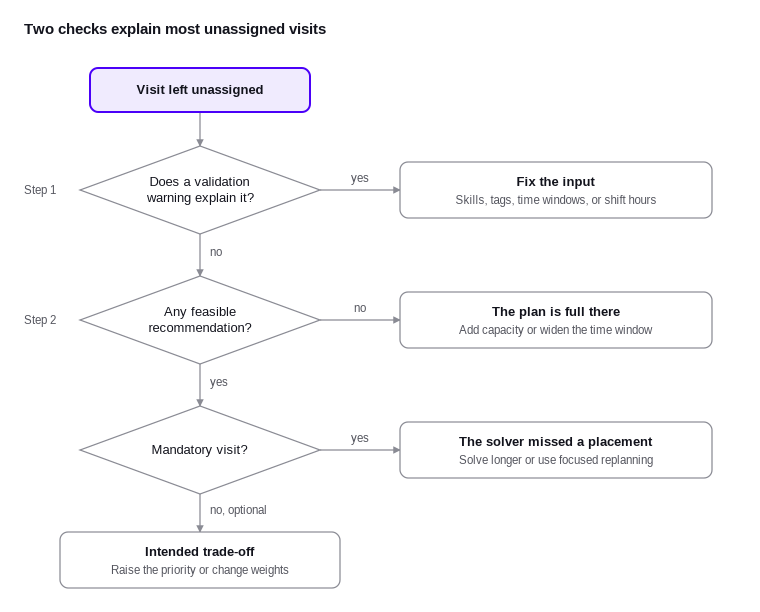
Steps 1 and 2 settle most cases. Use step 3 whenever a planner asks about a specific shift or time, and the Efficiency X-Ray when several visits needing the same skill or tag are unassigned.
Next
-
See the full API spec, try the online API, or start a free trial.
-
Learn more about field service routing from our YouTube playlist.
-
Learn how the model penalizes mandatory and optional visits in Priority visits and optional visits.
-
Learn every field of a recommendation response in Visit time window recommendations.
-
Validate manual changes and external plans with Score analysis.
-
Follow the platform-wide guide Validating an optimized plan with explainable AI.
-
Change how much each goal matters with constraint weights.