Notifications
Notifications let Timefold alert you or your team when a dataset or experiment reaches a status you care about, by sending a message to Slack, a webhook, or an email address. This page explains how to configure triggers and channels, and how to monitor notification activity in the platform UI.
| Notifications replace the older Webhooks feature, and existing webhooks have been migrated automatically. See Migrating from webhooks below. |
Concepts
The Notifications section has three tabs:
-
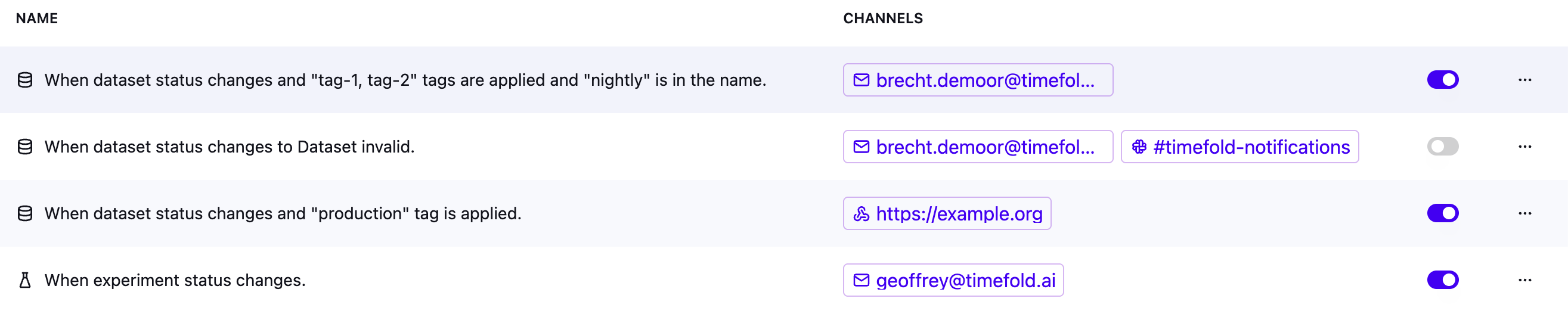
Triggers: the rules that decide when a notification fires, which events to watch, and which channels to send it to.
-
Channels: the reusable Slack, webhook, or email destinations that triggers send to.
-
Logs: the history of every notification that was sent, including its status and any error.
A channel is created once and can be reused across as many triggers as you like. For instance, the same Slack channel can receive notifications from several different triggers, such as one trigger per model you run.
To access notifications, log in to Timefold Platform, click on the dropdown at the top right next to your username, click Manage tenant, then select Notifications in the menu on the left hand side.
Channels
Channels are the destinations a notification can be delivered to. Create a channel once, then attach it to any number of triggers.
To create a channel:
-
In the Channels tab, click Add channel.
-
Select the channel Type: Webhook, Email, or Slack. You can’t change the type after the channel is created.
-
Optionally provide a Name. If you leave it empty, the channel is named after its URL, email address, or Slack channel.
-
Fill in the fields for that channel type (see below).
-
Click Add.
Email channel
-
Team member: the tenant member to notify. Only active members of your tenant can be selected, and each member can have one email channel.
Slack channel
-
Slack channel: the name or ID of the Slack channel to post to, for example
#generalorC0123ABCDEF. -
Token: the secret that holds the Slack bot or user API token used to post the message. Select it from the list of your tenant’s secrets, or use Add new secret to create one first.
Webhook channel
-
URL: the
https://endpoint that receives the notification. The hostname must resolve to a public address: private and internal addresses are rejected. -
Headers (optional): static HTTP headers sent with each request. Header values can reference a secret with
{secret.id}, and can use the HMAC variables described in Custom headers.Timefold always sends a
Content-Type: application/jsonheader, which a customContent-Typeheader can’t override. The same applies to theX-Timefold-SignatureandX-Timefold-Timestampheaders when HMAC is enabled. -
Auth method: None or HMAC. When HMAC is selected, also choose the HMAC type (Body or Path) and select the secret that holds the HMAC key.
See Webhook channel details for the payload, retry behavior, and HMAC signing.
| Tokens and HMAC keys are always stored as secrets, so their values never appear in the configuration screen. |
Deleting a channel
You can delete a channel from the Channels tab or from its edit dialog. If the channel is still attached to one or more triggers, Timefold lists those triggers and blocks the deletion until you detach the channel from them. Click a trigger in the list to open it.
When a member is removed from the tenant, their email channel is deleted and detached from its triggers.
Triggers
A trigger watches for dataset or experiment events and sends a notification to its attached channels whenever a matching event occurs.
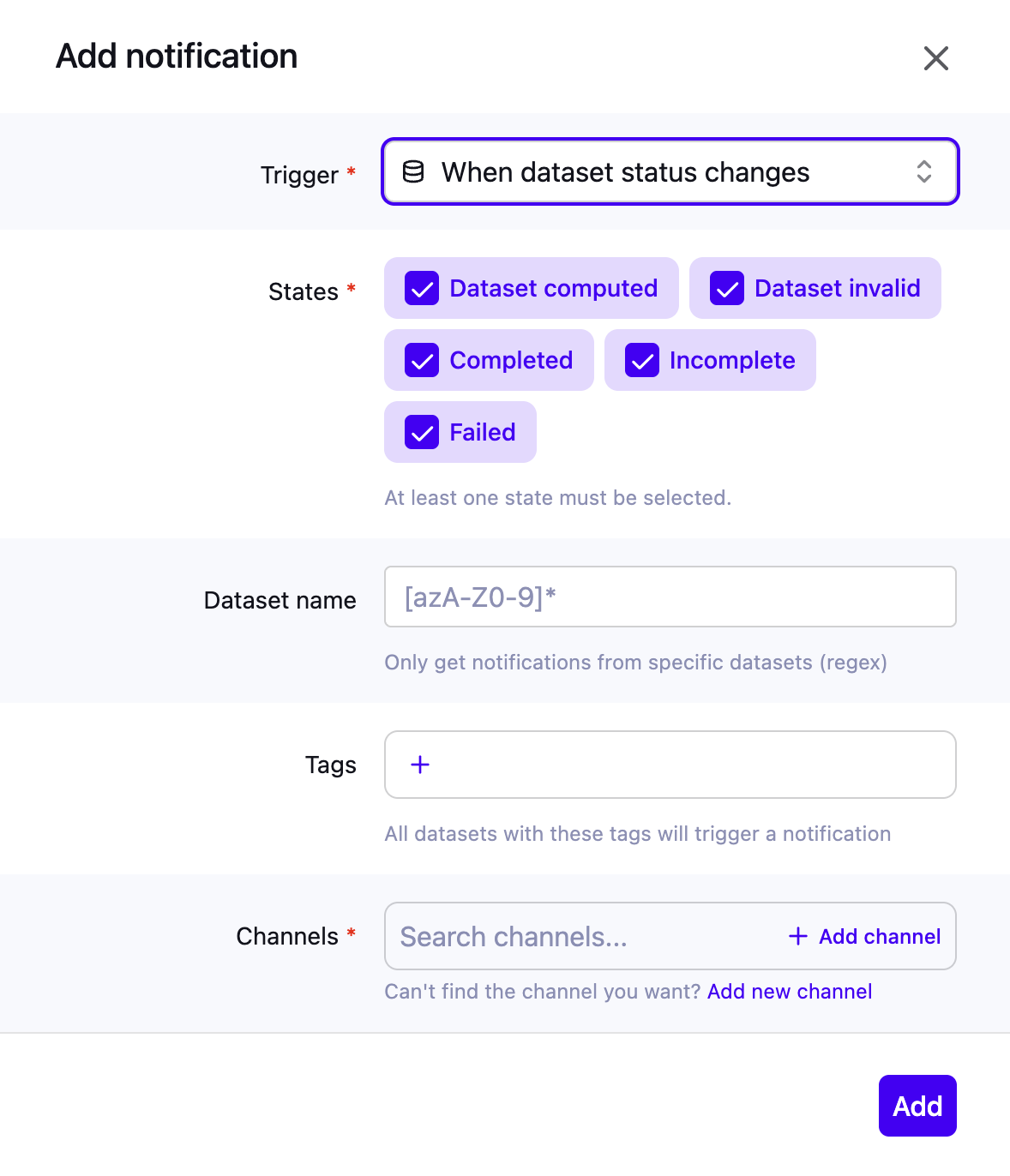
To create a trigger:
-
In the Triggers tab, click Add notification.
-
Select the Trigger type: When dataset status changes (see the dataset lifecycle) or When experiment status changes (see Experiments). You can’t change the trigger type after the trigger is created.
-
Select the States to notify on. All states are selected by default, and at least one must stay selected.
-
Dataset states: Dataset computed, Dataset invalid, Completed, Incomplete, and Failed.
-
Experiment states: Created, Running, and Completed.
-
-
Optionally, filter by Dataset name or Experiment name, and by Tags, to only notify for matching datasets or experiments. The name filter is a regular expression that must match the full name. With tags, only datasets or experiments that have all the listed tags trigger a notification.
-
Select one or more Channels to send the notification to. To create a new channel without leaving the dialog, click Add channel: the rest of the form is kept, and the new channel is selected once you add it.
-
Click Add.
Once created, a trigger can be:
-
Enabled or disabled: use the toggle in the Triggers table. A disabled trigger stops watching for events until re-enabled.
-
Edited: click the row, or use Edit in the row menu, to change a trigger’s states, filters, or channels.
-
Duplicated: use the row menu to create a copy to adjust, for example to reuse the same states and filters with a different channel.
-
Deleted: use the row menu. This does not delete the trigger’s channels, which remain available for other triggers.
Logs
The Logs tab lists every notification a trigger has produced, one entry per channel attached to the trigger, per matching event, and serves as the audit trail for notification activity.
Each entry shows:
-
Trigger: the rule that produced the notification.
-
Channel: the destination it was (or is being) sent to.
-
Type: Webhook, Email, or Slack.
-
Status: Pending, Executing, Success, or Failed. Failed entries also show the error message.
-
Executed at: when it was sent.
Click a row to see full details, including the full error message, the number of retries, and the event data.
You can filter logs by Status, Channel Type, and Trigger Type (dataset or experiment).
Retrying a notification
Click Retry in the row, or in the details dialog, to resend a notification that is in the Success or Failed state. Retrying creates a new log entry rather than replaying the original one, so the original entry remains in the log as history. Retry is disabled while a notification is Pending or Executing.
Webhook channel details
The sections below cover the webhook payload, delivery, authorization, and firewalling in detail.
Webhook payload
Timefold sends the payload as JSON with a Content-Type: application/json header.
Apart from the standard Host and Content-Length headers, the request only contains Content-Type, the HMAC headers when HMAC is enabled, and your custom headers.
Every payload has a type field, DATASET or EXPERIMENT, that tells you which kind of trigger sent it.
For a When dataset status changes trigger, the payload looks like this:
{
  "type": "DATASET",
  "id": "c66fd396-f34f-4320-b702-4adc02ebdf1b",
  "parentId": "4d440919-84dd-4be5-88c3-0ece129dd26d",
  "originId": "4d440919-84dd-4be5-88c3-0ece129dd26d",
  "name": "My dataset",
  "model": "employee-scheduling",
  "modelVersion": "v1",
  "status": "SOLVING_COMPLETED",
  "tags": ["system.type:from-input"],
  "runLink": "https://app.timefold.ai/api/models/employee-scheduling/v1/schedules/c66fd396-f34f-4320-b702-4adc02ebdf1b/metadata",
  "outputLink": "https://app.timefold.ai/api/models/employee-scheduling/v1/schedules/c66fd396-f34f-4320-b702-4adc02ebdf1b",
  "webLink": "https://app.timefold.ai/dcd34b8f-3fc3-4c91-8000-c94732495a47/models/employee-scheduling/v1/runs/c66fd396-f34f-4320-b702-4adc02ebdf1b"
}-
runLink: the API endpoint for the dataset’s metadata. -
outputLink: the API endpoint for the dataset’s output. -
webLink: the dataset’s page in the platform UI.
Fields without a value, such as parentId for a dataset that wasn’t created from another dataset, are left out.
For a When experiment status changes trigger, the payload uses the same field names where they apply:
{
  "type": "EXPERIMENT",
  "id": "0b6d6c2e-3f0a-4a8e-9a55-7d7f0f2b8c11",
  "name": "My experiment",
  "model": "field-service-routing",
  "status": "COMPLETED",
  "datasetStatus": "COMPLETED",
  "updatedAt": "2026-09-23T09:12:44Z",
  "tags": [],
  "experimentLink": "https://app.timefold.ai/api/models/experiments/field-service-routing/0b6d6c2e-3f0a-4a8e-9a55-7d7f0f2b8c11",
  "webLink": "https://app.timefold.ai/dcd34b8f-3fc3-4c91-8000-c94732495a47/analyze/experiments/field-service-routing/0b6d6c2e-3f0a-4a8e-9a55-7d7f0f2b8c11"
}-
status: the experiment status,CREATED,RUNNING, orCOMPLETED. -
datasetStatus: the least successful status among the experiment’s datasets:FAILED,INVALID,INCOMPLETE, orCOMPLETED, orCREATEDorACTIVEwhile datasets are still being solved. -
updatedAt: when the experiment status changed. -
experimentLink: the API endpoint for the experiment. -
webLink: the experiment’s page in the platform UI.
Retry strategy
Timefold expects the webhook URL to return an HTTP status code between 200 and 399. Redirects aren’t followed. If the response code is different, Timefold tries again 10 seconds later, up to 10 times.
After the last failed retry, Timefold emails the tenant administrators with a link to the log entry of the failed notification. These emails are limited to one every two hours per channel.
If the channel’s token, HMAC key, or a secret referenced in its headers can’t be resolved, for example because the secret was deleted, the notification fails immediately without retrying.
Timeouts
Timefold applies a 5-second timeout when delivering webhooks. This is consistent with industry standards.
There are two distinct timeout types, each handled differently:
-
Connect timeout: the connection could not be established. These are retried using the retry strategy above.
-
Read timeout: the connection was accepted but no response was received in time. These are not retried, to avoid delivering the same notification more than once.
|
Timefold does not use the webhook response body; only the HTTP status code matters. When a webhook arrives, your endpoint should put the event in a queue and return HTTP 200 immediately. The actual work, such as fetching the result, re-optimizing, or saving to storage, should be managed by a background worker that consumes from that queue. If your endpoint does heavy work during the webhook call itself, it will be vulnerable to timeouts regardless of how long the timeout window is. Increasing the timeout just shifts the problem. |
HMAC authorization
Why HMAC authorization?
HMAC (Hash-based Message Authentication Code) authorization is used to verify that a webhook request actually comes from the Timefold Cloud Platform and hasn’t been tampered with in transit.
-
Security: Ensures that only requests signed with your secret HMAC key are accepted.
-
Integrity: Confirms that the webhook payload or request path hasn’t been altered.
-
Replay protection: By including a timestamp in the signed request, you can detect and reject replayed requests.
Using HMAC verification adds an extra layer of trust to your webhook integrations, and is especially useful when the webhook triggers important actions in your system.
How to enable HMAC
-
When setting up a webhook channel, set Auth method to HMAC (default is None).
-
Select the secret that holds the HMAC key. This key is used to sign all webhook requests.
Once enabled, Timefold automatically includes the following headers in each webhook request:
-
X-Timefold-Signature: the HMAC signature of the request. -
X-Timefold-Timestamp: the time of the request, in ISO-8601 formatyyyy-mm-ddThh:mm:ssZ.
Timefold uses HMAC_SHA_256 as the hashing algorithm, and the values are base64 encoded.
Signature content options
By default, the HMAC signature is calculated over the webhook Body (= payload).
You can also choose Path in the HMAC type dropdown, if you want the signature to be based on the webhook URL path instead.
The signed content is then POST+<path>+<timestamp>, where <path> is the lowercased URL path without the query string.
Custom headers
The HMAC signature ({hmac_signature}) and time ({hmac_timestamp}) can also be used as variables when configuring custom headers.
This allows you to:
-
Send the signature and timestamp under different header names.
-
Add prefixes or postfixes to the values of the headers.
Example configurations
Default HMAC setup
Webhook channel settings
-
Auth method: HMAC
-
HMAC type: Body
-
Headers: none
Sample request sent by Timefold
POST /path-to-receiving-endpoint HTTP/1.1
Host: example.org
Content-Type: application/json
X-Timefold-Signature: f2Ak8ODZo7...
X-Timefold-Timestamp: 2025-09-26T10:28:16Z

{"id":"8dbdce26-8b9a-45a2-9cb5-0a3dc2fc2cc7", "parentId": [...]}
Verification pseudocode
signature_header = request.headers["X-Timefold-Signature"]
timestamp_header = request.headers["X-Timefold-Timestamp"]

content = request.body  // raw JSON string

expected_signature = base64encode(HMAC_SHA_256(secret_key, content))

if !secure_compare(signature_header, expected_signature):
    reject_request("Invalid signature")

if abs(current_time - timestamp_header) > allowed_window:
    reject_request("Stale request")
HMAC setup using type "Path" and custom headers
Webhook channel settings
-
Auth method: HMAC
-
HMAC type: Path
-
Headers:
-
X-My-Custom-Signature:MYPREFIX:{hmac_signature} -
X-My-Custom-Timestamp:{hmac_timestamp}
-
Sample request sent by Timefold
POST /path-to-receiving-endpoint HTTP/1.1
Host: example.org
Content-Type: application/json
X-Timefold-Signature: Qk1fpcu1oL...
X-Timefold-Timestamp: 2025-09-26T10:28:16Z
X-My-Custom-Signature: MYPREFIX:Qk1fpcu1oL...
X-My-Custom-Timestamp: 2025-09-26T10:28:16Z

{"id":"8dbdce26-8b9a-45a2-9cb5-0a3dc2fc2cc7", "parentId": [...]}
Verification pseudocode
signature_header = request.headers["X-My-Custom-Signature"]
timestamp_header = request.headers["X-My-Custom-Timestamp"]

// remove prefix before verification
raw_signature = signature_header.remove_prefix("MYPREFIX:")

content = "POST" + "+" + lowercase(request.path) + "+" + timestamp_header

expected_signature = base64encode(HMAC_SHA_256(secret_key, content))

if !secure_compare(raw_signature, expected_signature):
    reject_request("Invalid signature")

if abs(current_time - timestamp_header) > allowed_window:
    reject_request("Stale request")
Firewall and IP allowlisting
Timefold webhooks are delivered from our cloud infrastructure and may originate from IP addresses that can change over time. We do not publish or guarantee a fixed IP address or IP range for webhook delivery.
If you need to restrict incoming traffic, we strongly recommend validating the HMAC signature (X-Timefold-Signature and X-Timefold-Timestamp headers) as the primary mechanism to verify that a request originates from the Timefold Platform.
Several modern firewalls also support performing HMAC verification themselves, allowing you to enforce signature validation before traffic reaches internal systems.
In more restricted network setups where the firewall cannot perform HMAC verification, a common pattern is:
-
Expose a small, controlled service with a static public IP address.
-
Allowlist that static IP in your firewall.
-
Let that service receive the webhook, perform the HMAC verification, and then forward only trusted requests to internal systems.
Migrating from webhooks
Notifications is the successor to the Webhooks feature: it covers the same dataset use case, adds experiment triggers, and adds Slack and email as delivery channels alongside webhooks.
Existing webhooks have been migrated automatically, so you don’t need to set them up again:
-
Each webhook became a webhook channel and a When dataset status changes trigger with the same name, URL, headers, HMAC settings, filters, and enabled state.
-
HMAC keys that were entered as plain values were moved into new secrets, which the channel now references.
-
The original webhooks were disabled, so each event is only delivered once, by the new trigger.
Unlike the original webhooks, migrated triggers also fire for datasets that are part of an experiment.
The Webhooks pages are read-only: you can still see the original configuration and past logs, but you can no longer create or edit webhooks there.