Manage organization
An organization groups one company’s tenants on Timefold Platform. The organization holds a set of tenants with a clear tenant type (Production, Testing, or Development), and its own members who manage the organization.
Organizations are available on Timefold Cloud. Timefold sets up the organization together with you.
Why use an organization
- Consistent environments from the start
-
Your Production, Testing, and Development tenants are created together, with consistent names. Every tenant shows its tenant type (Prod, Testing, or Dev) in the tenant switcher, so you always know whether you’re working in production.
- Control when new model releases reach production
-
Set a model release lag per tenant type: tenants run the latest model release, or stay one or two releases behind. For example, validate a new release in your Testing tenant while your Production tenant stays on the previous release. You set this yourself, without contacting Timefold. See Tenant type and model release lag.
- Central administration
-
Organization admins manage the organization’s members and tenants in one place, under Organization settings.
- Add Production tenants yourself
-
With a setup that includes multiple Production tenants, organization admins add Production tenants without contacting Timefold. This is useful when you run one Production tenant per end customer, for example as an OEM.
- A namespace for your own models
-
If custom models are enabled for your organization, model admins register your own models under the organization’s namespace. See Bring your own model.
How an organization is structured
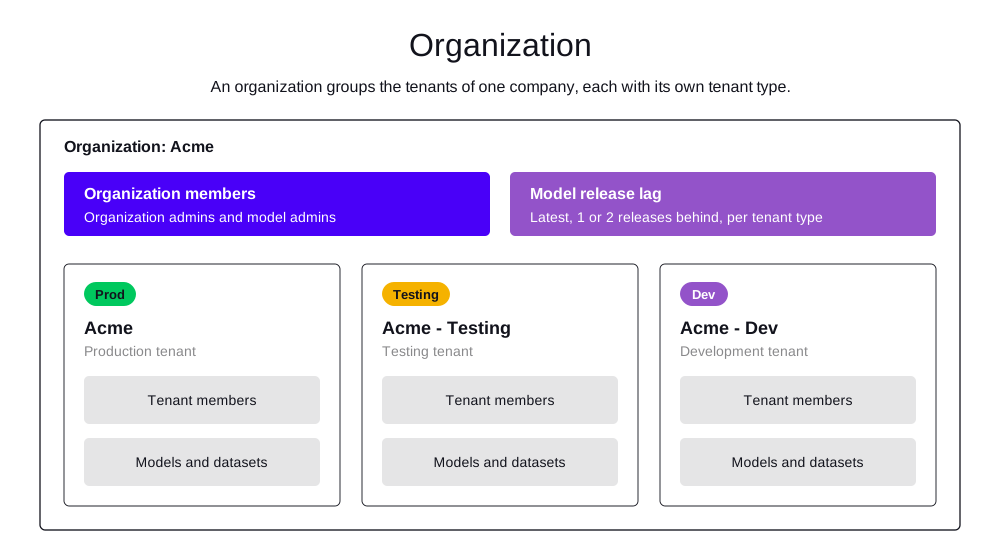
-
The model release lag is set per tenant type and applies to every tenant of that type.
-
Organization members are organization admins and model admins. They’re separate from the members of each tenant.
-
Each tenant keeps its own members, models, datasets, API keys, and configuration profiles, isolated from the other tenants.
An organization exists in one Timefold Platform region (EU or US).
Tenant setups
When Timefold creates your organization, you choose a tenant setup together. The setup decides which tenants the organization has.
| Tenant setup | Tenants | Organization admins can add tenants |
|---|---|---|
Production only |
One Production tenant |
No |
Testing and Production |
One Testing and one Production tenant |
No |
Development, Testing, and Production |
One Development, one Testing, and one Production tenant |
No |
Testing and multiple Production |
One Testing tenant and one or more Production tenants |
Yes, Production tenants up to the organization’s maximum |
Development, Testing, and multiple Production |
One Development tenant, one Testing tenant, and one or more Production tenants |
Yes, Production tenants up to the organization’s maximum |
Each organization has at most one Testing tenant and one Development tenant.
The tenants are named after the organization.
For an organization named Acme, the tenants are Acme (Production), Acme - Testing, and Acme - Dev.
You can rename tenants on each tenant’s Details page.
To change your tenant setup, contact Timefold.
Roles
Organization roles and tenant roles are separate.
-
Organization admin: manages the organization’s members, tenants, and model release lag under Organization settings.
-
Model admin: registers custom models under the organization’s namespace. Available when custom models are enabled for the organization.
-
Tenant roles (Administrator, User, and Viewer): apply to a single tenant. See Members.
A person can have both an organization role and a tenant role. To open Organization settings, an organization admin must be a member of at least one of the organization’s tenants. To register custom models, a model admin must be a member of a tenant in the organization. To work with a tenant’s models and datasets, or to manage a tenant, you need a tenant role on that tenant.
See What each role can do for a comparison of organization and tenant roles.
Open Organization settings
-
Log in to https://app.timefold.ai.
-
In the tenant switcher in the header, select one of the organization’s tenants.
-
Open the profile menu by clicking the cogwheel in the top-right corner of the header.
-
Select Organization settings.
Organization settings opens for the organization of the selected tenant. The profile menu only shows Organization settings to organization admins of the selected tenant’s organization. Model admins and tenant members don’t see Organization settings in the profile menu. To open Organization settings, an organization admin must be a member of at least one of the organization’s tenants.
Changes that require Timefold
Contact Timefold to:
-
Change the organization’s plan, name, or company.
-
Change the tenant setup, or add a Testing or Development tenant.
-
Change the maximum number of users or Production tenants.
-
Change maps settings.
-
Enable or disable custom models.
-
Remove a tenant from the organization, or move it to another organization.
-
Delete the organization.
FAQ
- How do I get an organization?
-
Contact Timefold. Timefold creates the organization with you, including the plan and the tenant setup.
- Are organizations available on self-hosted installations?
-
No. Organizations are only available on Timefold Cloud.
- Why can’t I open Organization settings?
-
The profile menu only shows Organization settings if you’re an organization admin and the tenant selected in the tenant switcher belongs to the organization. If you’re not an organization admin, ask an organization admin to invite you as organization admin. If you’re not a member of any of the organization’s tenants, ask an organization admin to invite you to one of the organization’s tenants.
- I’m an organization admin of several organizations. Which organization do I manage?
-
Organization settings opens for the organization of the tenant selected in the tenant switcher. Select a tenant of the organization you want to manage, then open the profile menu and select Organization settings.
- Does inviting someone as organization admin give them access to the tenants?
-
No. They can manage the organization, but to work with a tenant’s models and datasets they need a tenant role on that tenant. Invite them separately on each tenant’s Members page with the tenant role they need. Tenants created for the organization, including new Production tenants, get the organization’s active organization admins and model admins as Administrators. Someone you invite is only added to tenants created after they accept the invite.
- Does removing someone from the organization remove them from its tenants?
-
No. Remove them from each tenant’s Members page as well.
- Can a tenant in an organization have its own plan?
-
No. The organization’s plan applies to every tenant in it.
- Can I add a second Testing or Development tenant?
-
No. An organization has at most one Testing tenant and one Development tenant. Only setups with multiple Production tenants let organization admins add tenants, and only Production tenants.
- Can an organization include tenants in both the EU and the US?
-
No. An organization exists in one region.
- Can I use a tenant without an organization?
-
Yes. An organization is optional. A tenant without an organization works as described in Manage tenant, with its own plan and without a tenant type.